
Game Camera & Character Turning
An Imaginary Screen in the Air
Control your camera with Wrist To Mouse — like moving an imaginary screen in the air:
In the Link editor, click the ▽ next to the output area → Body-Mouse Sync → the Game Camera Mouse tab in the centered popup. This is also where you tune the in-game Sensitivity x and Sensitivity y (decimals supported):
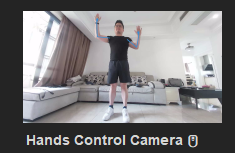
Re-capture the same pose
Hover over the pose thumbnail and it shows Double-click to re-capture (HitBoxes show Double-click to edit). Re-recording the same pose you originally used makes camera-control triggering more precise:
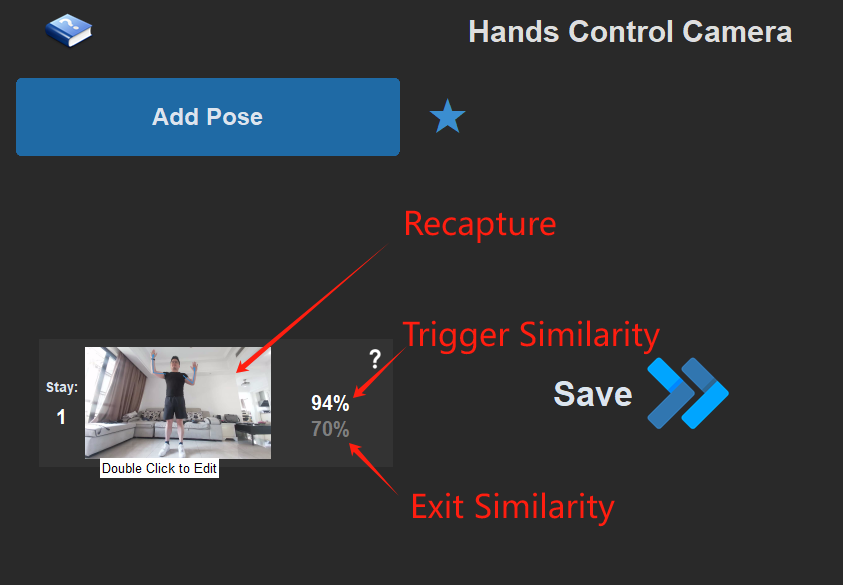
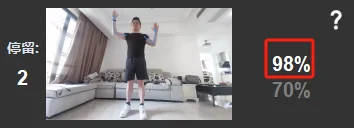
While capturing, the bottom of the window shows the live similarity percentage plus the two thresholds, Trigger and Release.
Process
-
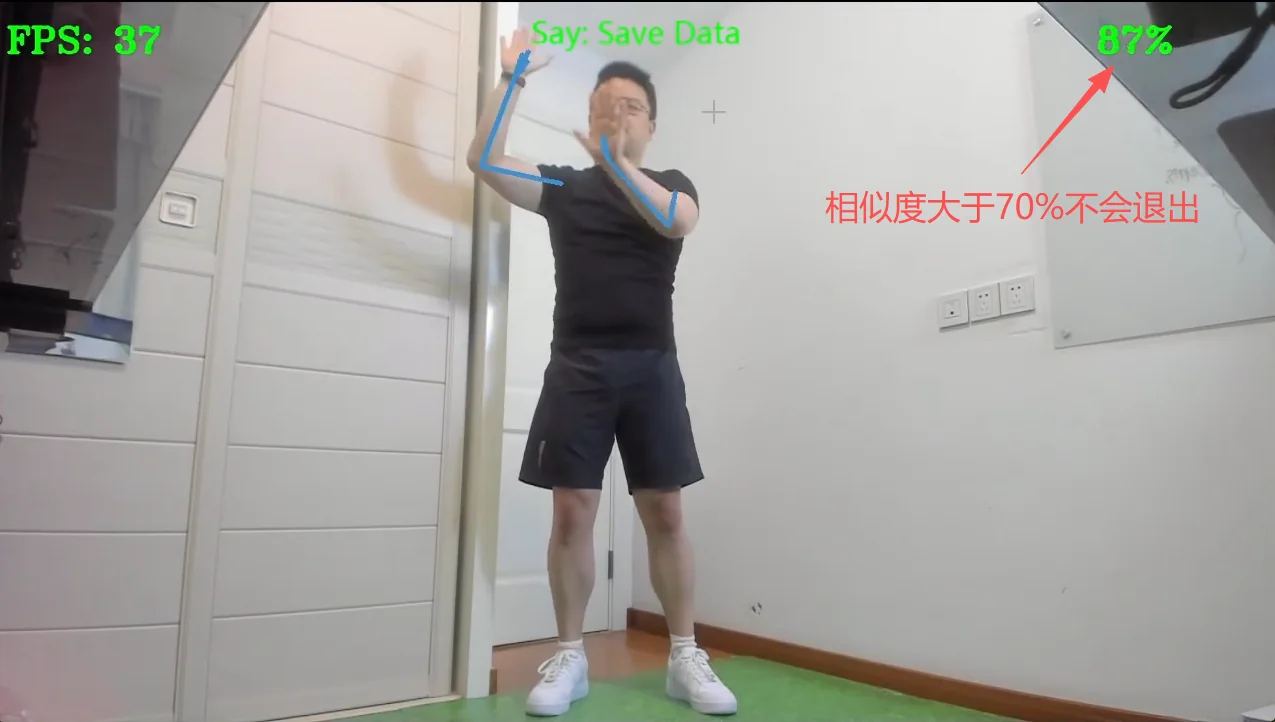
Raise both your left and right hand simultaneously to activate camera control (similarity reaches the Trigger threshold; output mode set to Hold).
-
Move your right hand to steer the view — as long as the pose similarity stays above the Release threshold (e.g. 70%), camera control stays active.
-
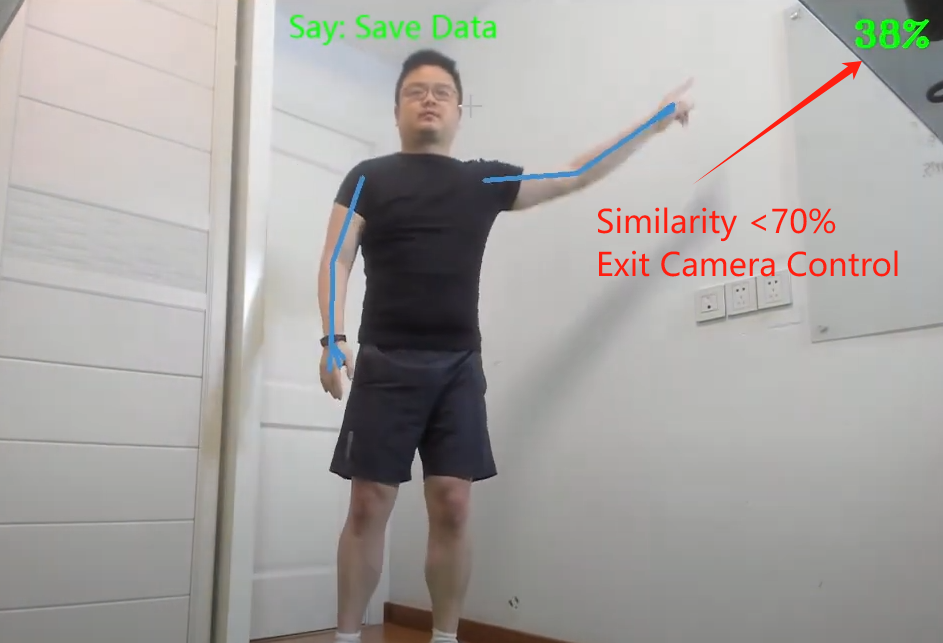
Lower your left arm first, then your right arm, to exit camera control — this prevents your right hand from dragging the camera down as you exit, because similarity already dropped below the threshold when the left arm came down.
-
Tune those two percentages until they feel comfortable (think of them as a key's press and release).
Avoid Mistriggers
-
Add a little bit of Stay (now measured in seconds, e.g. 0.3 s) so the pose must be held for a moment before camera control activates.
-
Raise the Trigger similarity so a small deliberate motion is needed to start camera control.
-
If the Link has several inputs combined with Match all logic, you can also use each input's ✓/✕ expectation buttons (Link triggered / Link no longer triggered) and per-input stay seconds for finer trigger designs.
-
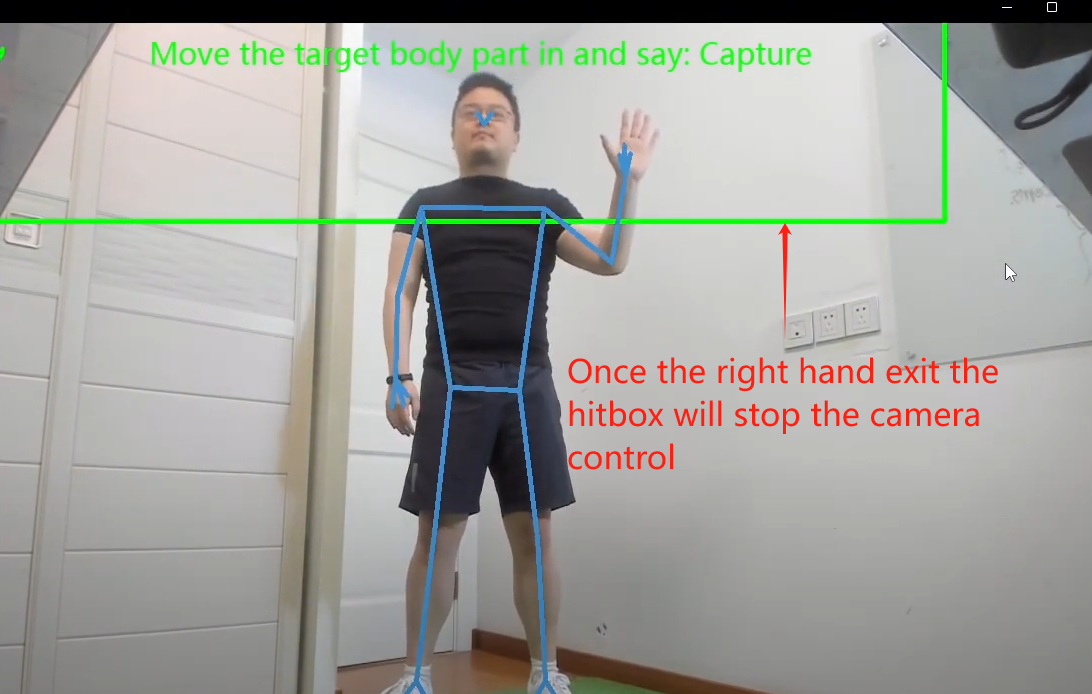
If beginners still accidentally point the camera at the ground, draw a HitBox to restrict the right hand from lowering the view too much — see: Add HitBox
Camera control cuts out mid-turn (Wrist To Mouse exits):
-
Lower the Release similarity so large sideways hand movements don't drop you out of camera-control mode.
-
In some games (especially online MMORPGs), you must hold the left/right mouse button to rotate the camera. If the cursor happens to sit on a UI element, holding the button won't drag the view.
The best fix is an action that recenters the mouse at any time — for example, bind an Add Mouse movement → Absolute Position output targeting the screen center to a frequently used action (such as looting).
You can also insert a move-to-center command before every right-button hold to guarantee the camera always responds, at the cost of a little extra latency.
More on mouse movement: Keyboard & Mouse
Game on a second monitor?
The Projection display picker in the popup (shown when two or more displays are connected) points the Wrist To Mouse projection at whichever monitor the game runs on.
Rotate Your Body, Rotate Your Character
The Starter Reference Template (Settings → Discover Models → General & Starter) contains ready-made turning Links to reference. For beginners this matches intuition: rotating your body rotates your character.
-
Replace the recorded key with your own in-game turn key (remember to select Hold).
-
Double-click to re-capture a turn angle that feels comfortable for you.
-
Scroll the mouse wheel to adjust the upper Trigger similarity for pressing the turn key.
-
Adjust the lower Release similarity for releasing the turn key.
Please refer to Pose Recognition, Keyboard & Mouse, and Wrist To Mouse to fine-tune turning.
Play with a Controller
For beginners, the fastest way to get going is pairing a comfortable controller for camera control, so you can focus purely on your movements — especially in games that require moving, turning the camera, and attacking with both hands at the same time.
Finger Ring Mouse — for camera control in first-person RPG games (said to be good, but pricey):
Wireless TrackBall — for camera control in first-person RPG games:
4-Key Mini Wireless Keyboard — simple, cheap, and plug-and-play; usable as custom turn keys or as left/right mouse buttons alongside Wrist To Cursor / Wrist To Mouse. Just note that holding it might not be very comfortable:
Joy-Con Controllers — now natively supported by The Link: pair them in the Link Joy settings panel and use Gyro-Mapped Mouse for camera control directly (stick mapping is available too), no third-party mapper needed:
If you like tinkering with hardware and are willing to invest, buying a pair of third-party Joy-Cons (the official ones are prone to Bluetooth disconnections) and pairing them with JoyToKey, DS4Windows, JoyShockMapper, reWASD (paid but powerful), or other free mapping software can theoretically let you play any game.