
Translucent Overlay Window
When The Link starts, it places a translucent camera overlay on top of your game so you can always see your position and trigger state. The overlay has two stages:
- Setup stage (after Click to Start, before the system activates): the overlay displays normally — drag it to move it, and drag its corner to resize.
- Activated stage (after the system activates): the overlay turns translucent and click-through, so it never blocks your game. Now you must hold the interaction hotkey (default Ctrl — either side works) to interact with it (drag, resize, minimize, close), and Ctrl+Alt+Q closes the overlay directly.
Everything is configured under Overlay Setup in the bottom row of the main interface:
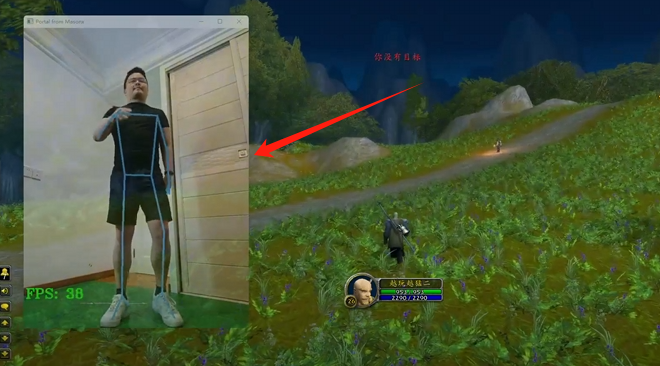
Main Settings
- Camera Visibility — how visible the camera feed is over your game: higher looks more like a real webcam feed, lower is more transparent.
- In-game overlay interaction hotkey — default Ctrl (either side); click to rebind it to another key.
- Close overlay hotkey — default Ctrl+Alt+Q.
- Sync figure (Full) / Sync figure (Upper) — switches this model's positioning guide framing. Models without a saved mode use Full; this does not change pose recognition.
- Show figure during game — shows a human silhouette in the overlay as a positioning guide. Recommended on for beginners; turn it off later to reduce clutter.
- Show keys during game — displays the keys The Link has triggered on the overlay. Strongly recommended for beginners to confirm outputs are really firing.
- Show Link names in touch boxes — labels each touch box in the overlay with its Link's name.
A Note About Ctrl
Because holding Ctrl enters overlay interaction, a "generic Ctrl" captured in your recordings is actually emitted to the game as Right Ctrl. Almost all games treat left and right Ctrl the same; if yours distinguishes them, bind the in-game function to Right Ctrl.
The Link Trigger Bar
Turn on Enable Link trigger bar and a trigger bar (widget strip) appears under the overlay, showing triggered Links in real time:
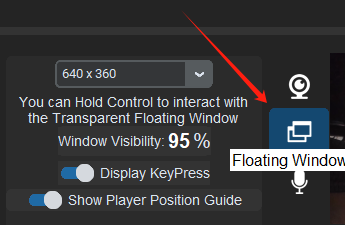
- Link Visibility — the trigger bar's transparency.
- Display mode dropdown — Always show / Hide after N triggers / Close.
- Trigger bar width — 1 to 8 slots.
Click the slots in the trigger-bar editor to customize the queue and pin the Links you care about most:
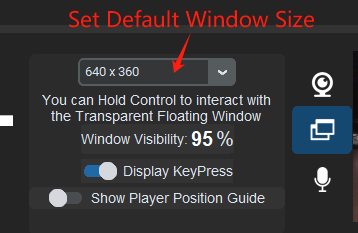
Each Link's editor also has its own Show in game switch that decides whether it appears in the overlay.
Size, Position, and Multiple Monitors
- There is no size dropdown: just drag the resize grip on the overlay's corner; a size badge shows the current dimensions.
- The overlay remembers both the position and the size you drag it to, and restores them next launch.
- Multiple monitors are supported: drop the camera overlay on any display and it remembers and binds to that display; you can also assign one with the Monitor option in Overlay Setup. The Link and your game do not need to stay on the primary monitor.
- The trigger bar does not pick its own display: it always follows the display The Link's main window is on, in setup and in game alike. You can still drag it freely within that display; its position is remembered as a proportion of the screen, so a resolution change does not knock it out of place.
Overlay Not Appearing Over the Game?
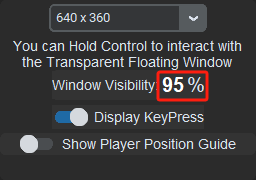
The overlay floats above most games, but some exclusive-fullscreen games force themselves above everything. Switch the game to borderless windowed mode, then hit Click to Start again:
Capturing the Camera Feed for Streaming or Recording
Usually, simply recording your desktop or display is easiest. You can also capture The Link's overlay on its own for vertical video or compositing:
In your streaming software choose Window Capture. Note: in the setup stage the overlay's window title is Portal from MasonX, but after activation the title changes to the hotkey legend. So match the window by process (exe) rather than by title, or the capture will drop after activation. When The Link detects it is being captured, it automatically outputs a solid, non-transparent camera feed to the capture software.
Recommended Streaming Setup
- Drag the overlay to its maximum size (this yields a 720p motion-capture feed).
- Set Camera Visibility to 0, and turn off Show figure during game and Show keys during game.
Your capture software gets the full feed while the fully transparent overlay stays out of your way — check your position and pose directly in the streaming software's preview.