
World of Warcraft
World of Warcraft Game Guide
⟵ You can click the tabs on the left to quickly view the desired content. Feel free to add comments or submit edit requests.
Join Discord Discussion
World of Warcraft Complete Setup Guide (From Scratch): How to Play World of Warcraft Using Real-World Movements Complete Tutorial
Additionally, in The Link > Settings > Discover Models you can download my official "World of Warcraft — Hardcore Mage" template and modify it directly: pick the "World of Warcraft" game card on the Game Models page, find the model card (it carries the "Official" badge and shows the author, likes, and download count), then click "Install" (Download & Load). The card also has "Demo" and "Guide" buttons.

Interacting with NPCs/Quest Items (Quest Hand-in, Looting, Interaction):
In the official World of Warcraft version, you can set an interaction key to interact with the target directly in front of you.
Go to Game Options > Control > Set a Shortcut Key for “Interact with Target”.
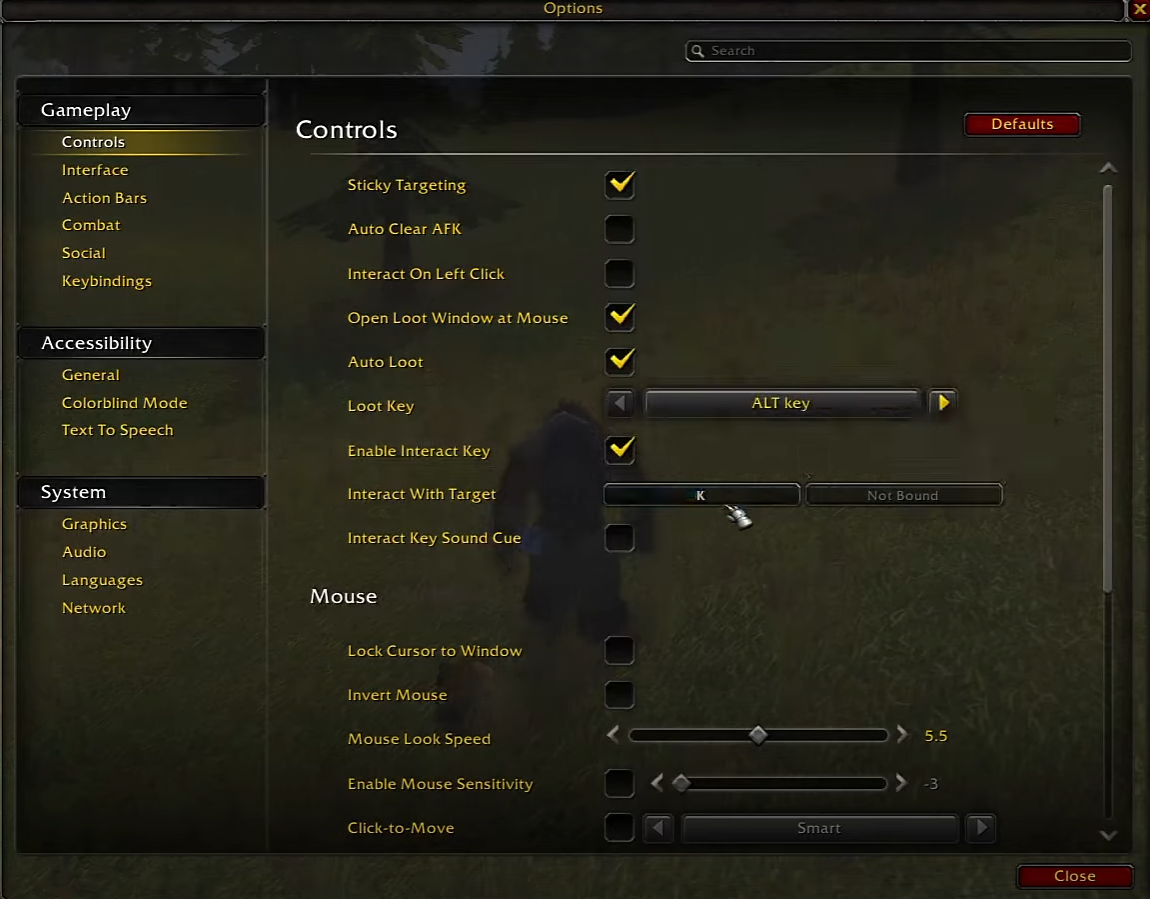
Enter the following command in the game (permanent setting) to increase the interaction range, which is especially helpful for looting:
/console SoftTargetInteractArc 2
Additional Interaction Tips
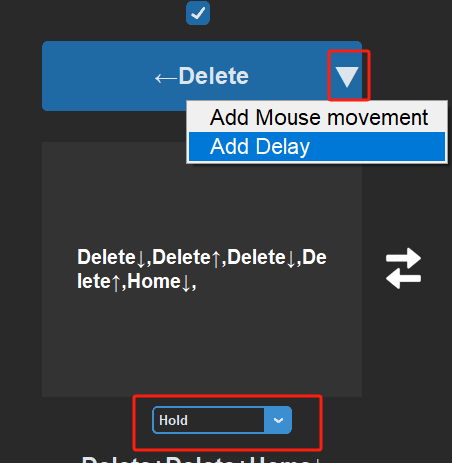
If you still have needs, or you are playing on Turtle WoW, you can add a mouse movement while recording keyboard and mouse inputs — open the ▽ output menu next to the recording button:
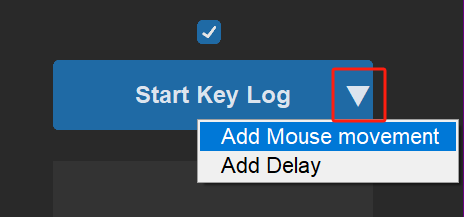
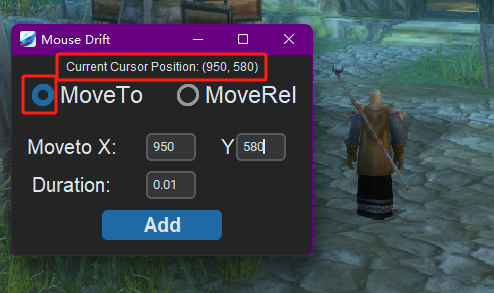
Choose "Add Mouse movement" > "Absolute position": the screen dims into a capture state, and clicking a spot (usually directly on your character) records the coordinates. Then record a right-click to interact. See Keyboard & Mouse Recording for the full flow.
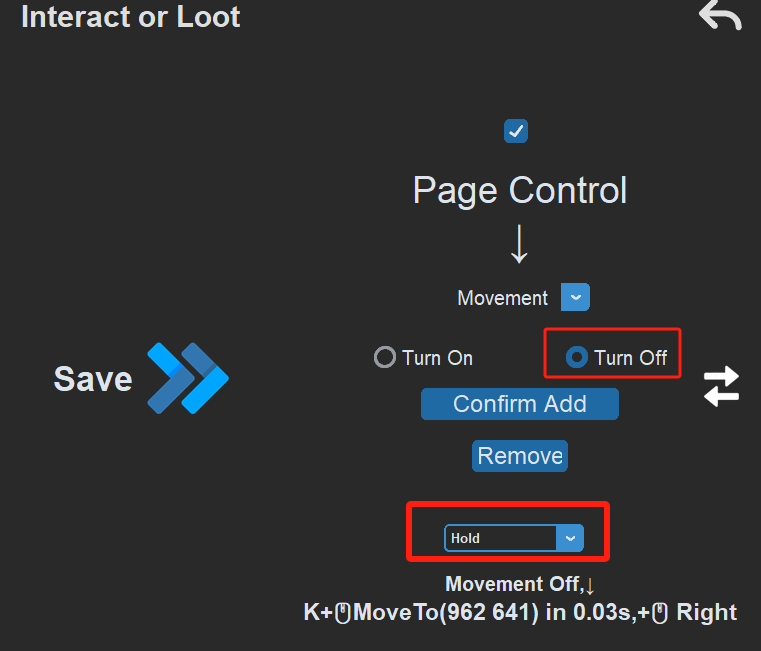
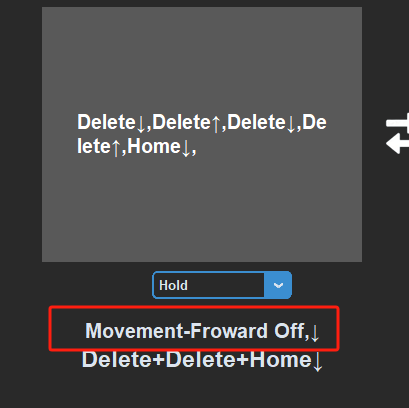
It is also recommended to add a "Hold to temporarily turn off Movement" in the interaction Link to ensure that your character stops in front of the NPC or quest item when interacting. In the editor, click ⇄ > "Page & Link Control", pick the "Page Toggle" tab, add the Movement page as "Add Page — Off", and set the behavior to "Hold":
Continuous Casting/Interaction/Conflict Actions - Setting Link Control:
This section is being updated.
For now, please refer to
Camera Control
Check out my deep dive into camera control video:
The Link Tutorial: A Deep Dive into Camera Control
Quick Turning Setup
Setting up quick turn actions is very useful in motion-controlled World of Warcraft. In intense combat, you always want to quick turn to a saved direction with one simple pose. Follow these 4 steps to set it up:
Set up save camera views hotkeys and set camera view hotkeys in the game:
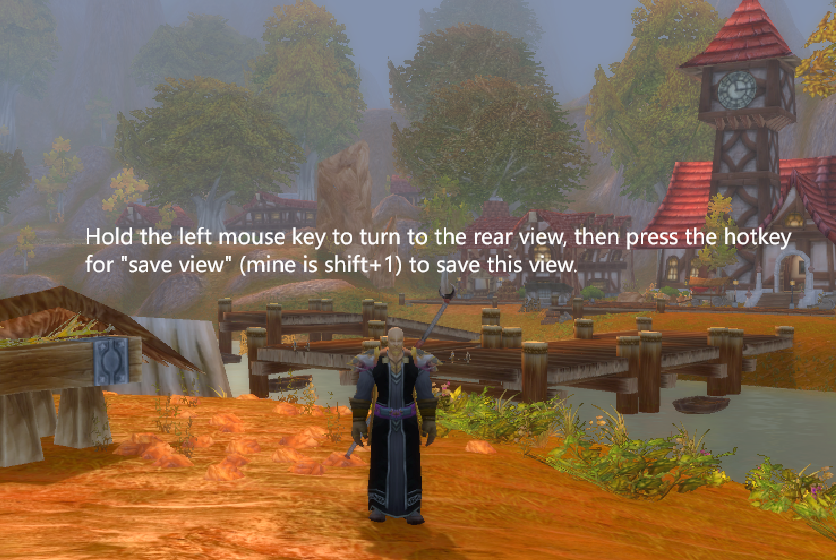
Now back to game,here is an example of how to set up a 180° camera turn:
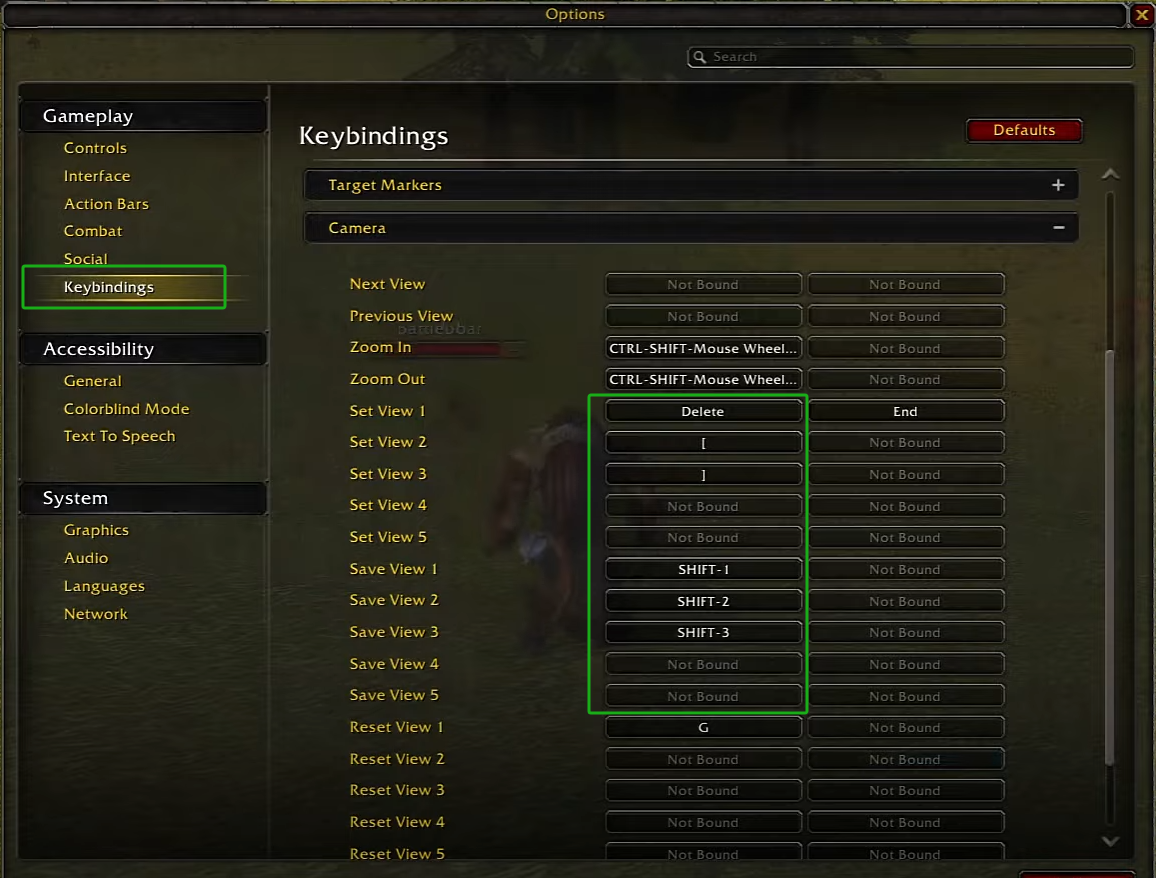
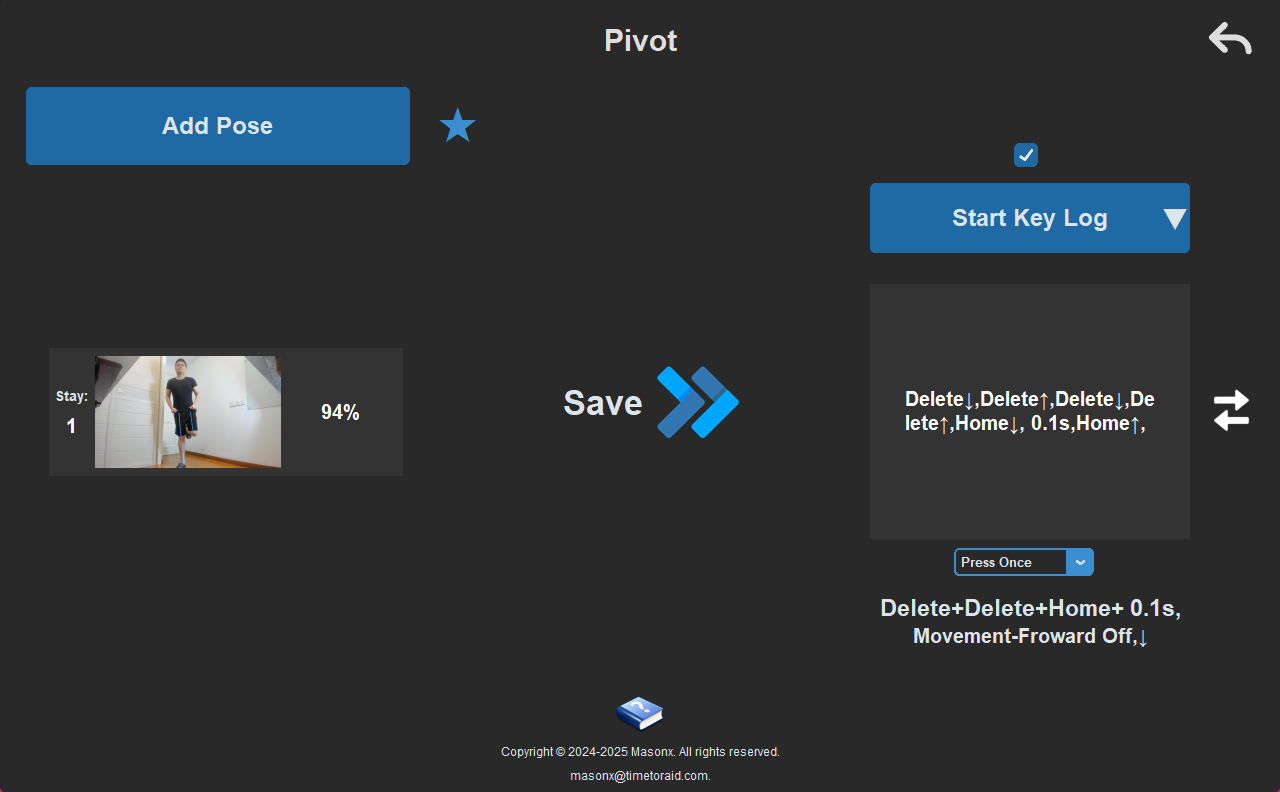
Create a new link, capture a pose or add a hitbox or whatever to trigger the turn, Start Key Log, double-press the hotkey for "Set View 1”. In my case, it is the "Delete" key to quickly switch to View 1. Set the behavior to "Execute Once".
Now with double press "delete” key our camera view already turned. You can manually use the camera control pose to decide whether the character also turns, or directly bind the movement control button to hold for a moment to make the character turn together with the view.
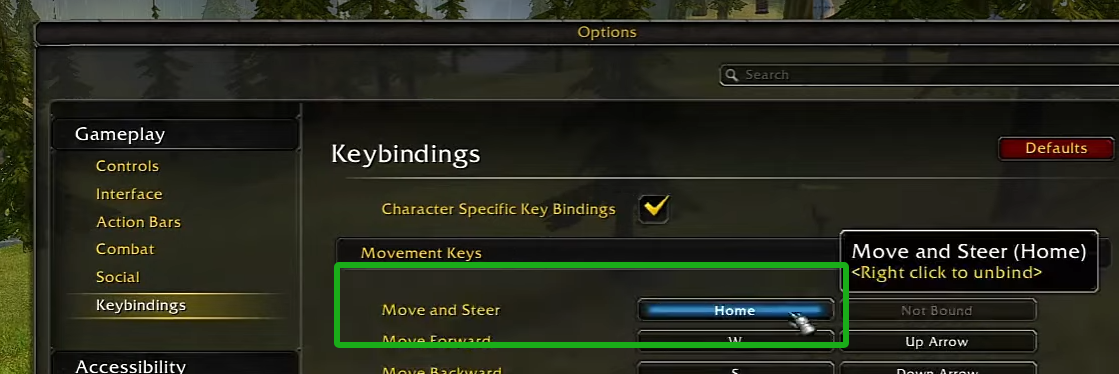
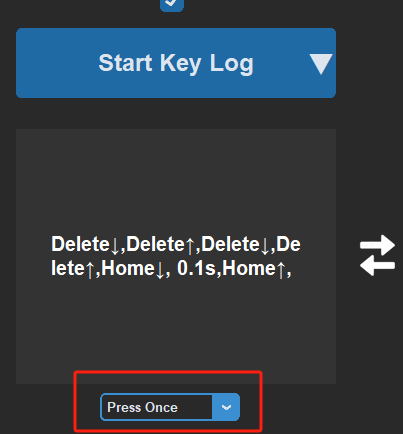
Press the "Home” key once(Can be any key you set), then choose "Hold".
This will turn the key into a hold state. Then open the ▽ output menu and choose "Add Delay". Finally, switch the behavior back to "Execute Once" to release the key. Every key and delay in the timeline can be double-clicked to edit and dragged to reorder — see Keyboard & Mouse Recording.
You can also add a dynamic Link Toggle to immediately stop the character moving and turn around (remember to use the "Hold” state so the movement will not permanently turn off). Check Link Toggle for more details.
Recommended Settings for Simple Mouse Mode in World of Warcraft:
When using Simple Mouse Mode to operate World of Warcraft’s menu and backpack, consider the following tips:
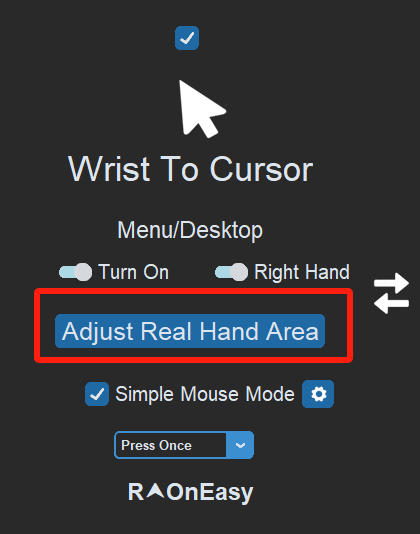
Since many UI elements in World of Warcraft are at the edges and corners of the screen, open the Body-Mouse popup's Desktop/Menu Mouse tab (Wrist To Cursor) and click "Set virtual screen in air":
Try to make the frame as small as possible to ensure your hand is directly facing the camera when clicking the screen edges.
Alternatively, you can draw a large frame and move left or right to maintain a position where your hand is facing the camera when clicking left or right mouse buttons.
Useful Macro Commands:
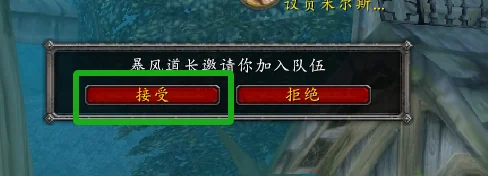
Confirming Pop-Up Windows:
Create a new macro and enter the following command:
/run StaticPopup1Button1:Click()
Declining Pop-Up Windows:
Create a new macro and enter the following command:
/run StaticPopup1Button2:Click()
Useful Addons:
Immersion:
(Enhancing the sense of immersion during motion gaming)
AutoGear:
(Automatically equips upgrades, selects quest rewards, and rolls on items,etc...)
In practice, different classes may still require manual fine-tuning to ensure it doesn’t choose the wrong rewards or equip the wrong gear.
Walking/Riding (Warrior/Druid Multiple Forms):
Page Control
This section is being updated.
For now, please refer to Page Toggle
Using Gamepad Support:
The Link now has native Link Joy controller support (Settings > Link Joy), with USB/Bluetooth pairing and gyro-to-mouse camera control — so you no longer need third-party mappers like reWASD, JoyToKey, or DS4Windows:
If you want to use a gamepad in World of Warcraft, enable gamepad support with the following commands.
Enter the following commands in the game:
/console GamePadEnable 1
/reload