
Frequently Asked Questions (FAQ)
Q1: The Link suddenly crashes or freezes after system activation. The floating window disappears and the main interface becomes unresponsive. What should I do?
This may be due to a corrupted Link save file. You can inspect each Link by double-clicking on them. If any action's small thumbnail shows tracking lines (blue by default — the color and style change if you equipped a Workout Reward Appearance, and privacy modes replace the figure with a stickman or white phantom) that don't match the tracking options in the side window, delete and recreate that Link. Alternatively, use Enable/Disable toggles to identify the corrupted Link.
The most likely cause is abnormal data being saved due to a camera frame drop or other glitches during the "Capture" moment. Usually, deleting and recreating the last Link you added resolves the issue.
This issue is still under investigation. If you can contact MasonX and provide the steps you took before the crash, it will help improve automatic detection in future updates.
Q2: The Link is not working in-game. I did the action, and it shows the key or mouse movement triggered, but nothing happens in the game.
After clicking Click to Start on the camera preview, make sure you've switched back to the game window.
If your keyboard and mouse work in the game, the issue might be due to insufficient user permissions. Follow these steps:
- Right-click "The Link" in your Steam Library.
- Select "Manage" → "Browse Local Files" to open the install folder.
- Find The Link.exe → Right-click → Properties.
- Go to the "Compatibility" tab.
- Check "Run this program as administrator" → Apply → OK.
- Restart The Link.
Some specific third-party software may conflict with The Link. Try disabling other apps and test again.
Q3: Unexpected System Off? (The Link says system off, not a crash)
It was likely caused by background noise or microphone interference accidentally triggering the shutdown command.
To reduce false triggers, go to The Link → Settings → System Voice, choose a more distinctive System shutdown phrase, or lower its sensitivity. You can also enable "Raise both hands for X seconds" as an additional exit route. Note: if the Preferences checkbox When selected, raising both hands returns to the synchronization screen is on, the gesture pauses and returns to the synchronization screen instead of exiting.
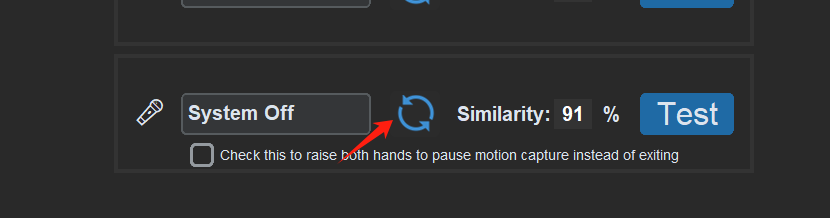
More issues related to voice recognition: Voice Recognition
Q4: My PC isn't bad, and my camera is decent, but The Link runs at very low FPS. Why?
If you use multiple monitors, you can try keeping The Link on your primary display — some Windows versions throttle programs on extended displays. The overlay can be bound to any monitor in Overlay Setup, and body-driven mouse output has a Projection display picker, so the primary screen is not required.
Check if "Game Mode" is enabled in Windows or other apps. It may mistakenly throttle The Link. Disable it.
Check if other software forces your camera into high resolution. The Link only needs 1280x720 (720p).
Avoid using third-party camera tools that apply zoom, rotate, or effects. Use The Link's built-in rotate option.
Q5: My custom actions frequently conflict or misfire. What should I do?
Avoid designing actions that track only one hand or one leg. Use both hands or the upper body.
Don't have too many Links running simultaneously on each category page. You can disable another Link temporarily when one is triggered.
Use pose "Stay" settings to require a pose to be held for a moment before it activates. Other similar poses can remain instant.
For actions that aren't time-sensitive, add voice recognition as a secondary trigger.
Use multi-segment actions or combine with hitbox conditions.
Use categories wisely. Enable horseback controls while riding, walking controls while walking, and menu controls while in UI. Pages can be toggled dynamically.
Refer to: Page Switch Control Link Switch Control
Q6: How can I quickly adapt to motion-based camera control?
Track both hands. Experiment with different enter/exit similarity thresholds. I personally prefer Enter: 95%, Exit: 80%.
Add extra hold time for your left hand, so your right hand has time to reach a comfortable position for control.
Or, draw a hitbox on the right side of your body, and trigger control only when your left hand is raised and your right hand is inside the hitbox.
Use your creativity to design a view control method that works for you.
See more: Camera and Character Turning Guide
Q7: After enabling mouse control, my mouse becomes extremely shaky. What should I do?
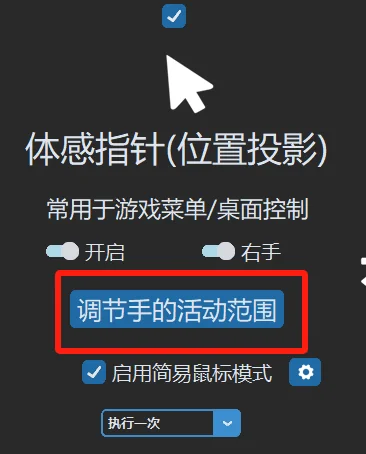
If you're using Simple Mouse Mode or the Wrist To Cursor (absolute position mapping) output, adjust the aerial virtual screen to an appropriate size for smoother control. Refer to: Wrist to Cursor Guide
Check frame rate. Blue line mode requires >20 FPS. Simple Mouse Mode needs >40 FPS. Use performance mode if your PC struggles.
Ensure the camera resolution is set to 1280x720 (720p).
Check if multiple mouse control methods are active. Disable one to prevent conflicts.
Q8: The tracking lines on my body are unstable and jittery after starting. What should I do?
-
Check whether the room is too dark, and whether your clothes blend into the background when the jitter happens (for example, both are one big block of black pixels).
-
Check whether the camera has color distortion, or whether your clothes themselves are moving violently.
-
Go to Settings → Advanced → Tracking & Confidence, raise Body Detection Confidence and Body Tracking Confidence, click Save, then restart the app.
-
If the detected body is upside down, simply turn sideways and back again to reset tracking.