
Add Head Turn
Head turn recognition remembers a head-looking-left or head-looking-right pose and uses it to trigger a Link's outputs — turn your head to switch the camera, glance sideways to cast a skill, and so on.
How to Add It
Head turn is an independent route inside the pose capture flow:
- Click Add Pose in the Link editor to open the Select tracking areas dialog.
- Click the head icon button above the body-part tiles (no body parts need to be checked).
- The head turn dialog opens. It carries an experimental notice at the top: Experimental feature: recognition may be unstable. Currently, only static left- and right-looking poses are supported. It also shows the current recommendation: trigger at 90% similarity, release at 30%.
- Click Start Head Capture to open the capture window.
Capturing
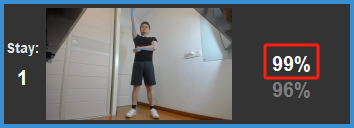
Capture works the same as pose recognition: turn your head to the left or right and hold it, say (or click) Capture, watch the similarity ribbon at the bottom, then say Save data to finish.
Tuning
After capture you get a normal pose widget. Trigger similarity, leave similarity, and Stay (in seconds) all work exactly as in pose recognition:
- Start with the dialog's recommendation: trigger 90% / leave 30%. The low leave similarity keeps you from being counted as "released" while holding the turn, and keeps Stay charging from resetting.
- Head turn only has two static directions (left/right); if it misfires, add some Stay.
See Similarity for the full mechanics.