
Pose Recognition
Pose recognition captures the exact body posture you hold the moment you say "Capture." You can then use that pose to trigger a Link's outputs.
Click Add Pose in the Link editor to get started (the small ▽ menu next to the button offers the other input types, such as hitboxes and voice).
Select Tracking Areas
Clicking Add Pose opens the Select tracking areas dialog. Pick one or more body parts:
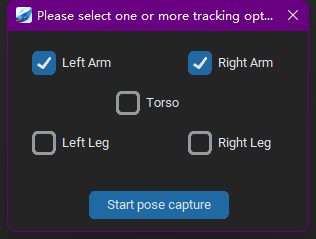
- The tiles are Left Arm, Right Arm, Torso, Left Leg, and Right Leg. Both arms are pre-checked by default.
- Tracking both arms is recommended in most cases to avoid false triggers: while one hand performs an action, the other usually stays in a fixed position.
- If the game has only a few action keys and you want poses to trigger more casually, tracking a single arm also works.
- Check Torso when your action involves rotating or leaning the upper body (this effectively tracks the whole upper body).
- For leg tracking, place your camera at knee height and keep your feet near the bottom edge of the camera view for best results.
- You can freely combine tracking areas. Each combination produces slightly different similarity behavior — experiment to find what fits you and your in-game character.
- The head icon button above the tiles is a separate entry for head turn recognition.
Click Start to open the capture window.
Recapturing
Double-click a captured pose's thumbnail to recapture it. During a recapture the dialog shows read-only Tracking areas — tracking areas stay fixed while recapturing:
The Capture Window
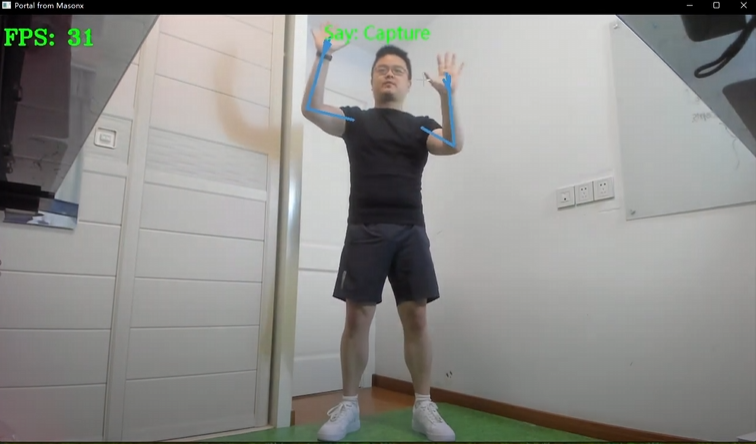
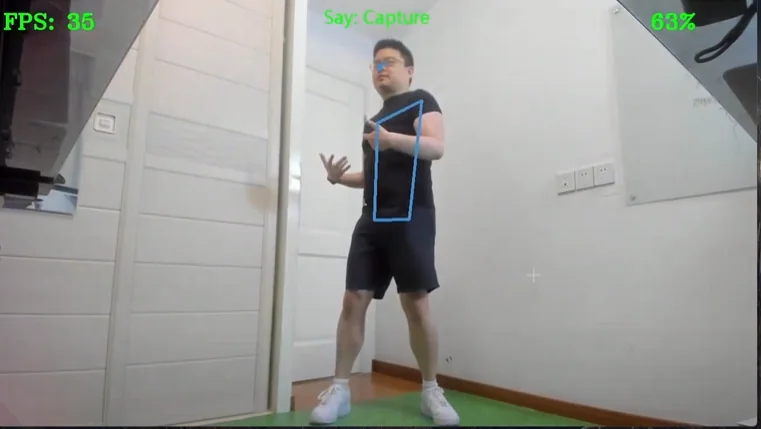
- Frame rate: always shown in the FPS badge in the top-left corner. The frame rate during training is slightly lower than during real gameplay.
- Voice prompts are clickable: before any data is captured, the top shows only Say: Capture; afterward it becomes “Save Data” or “Capture”. Both words follow System Voice Settings, and the current primary command can also be clicked. You can enable Auto Countdown there so capture/save happens automatically when the countdown ends.
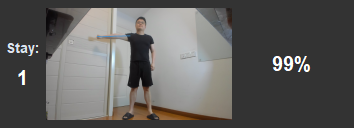
- Hold your pose and say (or click) Capture. Once a pose is captured, a similarity ribbon appears at the bottom: the large percentage is the live similarity between your current posture and the captured pose, and the right end of the ribbon marks the two thresholds — Trigger ≥ N% and Release < N%. When you reach the trigger threshold, a "Trigger" confirmation flashes in the center of the frame.
- After capturing a pose, repeat the motion a few times (the faster and sloppier the better) and watch how the similarity fluctuates. Your form will drift during intense gameplay, so leave some headroom.
- Say Save data to finish training, say Capture to retrain a new pose, or close the window to cancel.
The Pose Widget
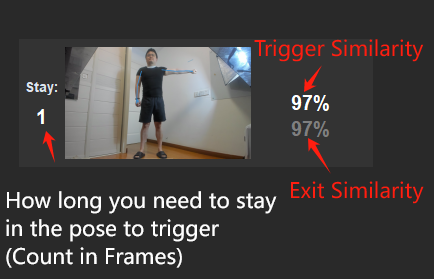
Trigger Similarity and Leave Similarity
Think of trigger similarity and leave similarity as pressing and releasing a key:
Trigger Similarity
How hard a pose is to trigger: lower values make it easier to trigger; higher values require your motion to match the captured pose more closely.
When your similarity is greater than or equal to this value:
- Every output set to Execute Once fires once immediately (including any delay you set), then holding the pose will not fire it again;
- Every key set to Hold is pressed down;
- Every key set to Spam starts spamming;
- In keyboard & mouse output, keys set to Trigger & Release run the actions before the loop marker
 ;
; - Every Hold-mode Wrist To Cursor, Wrist To Mouse, Page Toggle, and Link Toggle output temporarily switches on or off according to your settings.
Leave Similarity
When your similarity drops below this value, The Link decides you are no longer holding the pose:
- All Execute Once actions become eligible to trigger again;
- All keys set to Hold are released;
- All Hold-mode Wrist To Cursor, Wrist To Mouse, Page Toggle, and Link Toggle outputs reverse their state — whatever was switched off at trigger time switches back on, and vice versa;
- In keyboard & mouse output, keys set to Trigger & Release run the actions after the loop marker;
- All keys set to Spam stop spamming.
Tuning tips:
- Scrolling the wheel on trigger similarity moves leave similarity in lockstep (the gap between them is preserved); adjusting leave similarity on its own changes the gap.
- Leave similarity is hidden at rest — hover over the pose widget to reveal it. Its range is 0–99.
Stay
Stay is measured in seconds (0.1 s steps). It is how long the pose must be held before it triggers, displayed as "-" (unset) or a value like "0.3s". It is the most common way to prevent accidental triggers in game.
Stay charging is band-tolerant: once charging starts, it keeps going as long as your similarity stays at or above leave similarity; only dropping below leave similarity resets it. So if Stay never completes, try lowering leave similarity first.
Forward and Backward Poses
Normal cameras see the world like a flat photo: they know up, down, left, and right, but not how far away you are. To detect forward/backward movement, The Link relies on "closer looks bigger, farther looks smaller." Poses inferred this way are usually less precise than horizontal motions, so design horizontal gestures whenever possible. When you genuinely need a forward/backward pose (punching, sword thrusts, and so on), set a lower trigger similarity so it fires reliably, and add some Stay to prevent false triggers.
PS: the forward/backward inference algorithm keeps improving with software updates.
Adding Multiple Poses/Inputs
Each Link's input area holds up to 3 widgets — any mix of poses, hitboxes, voice commands, walk/jump recognition, or other Links.
With more than one input, a vertical rail appears on the left of the input area, carrying a logic chip that defines how the inputs combine: In sequence, Match all, or Any true. Scroll the mouse wheel over the rail, or click the chip, to cycle between them:
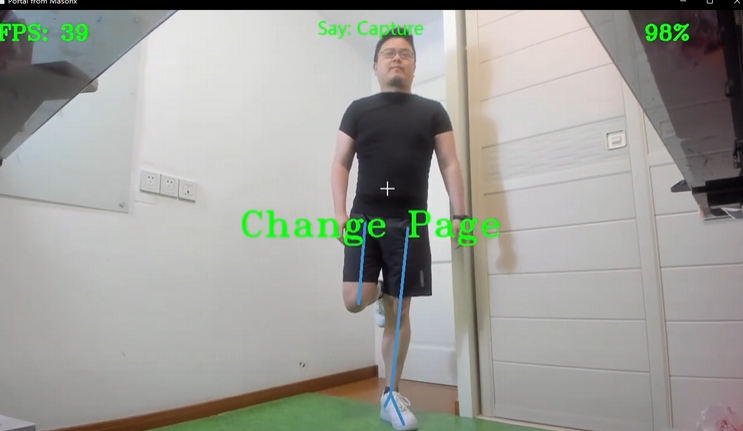
In sequence: complete the inputs in order
Pose recognition itself only matches one static pose at a time. To recognize a continuous motion, split it into 2–3 poses and add them in order — effectively breaking the motion into 2–3 keyframes. Perform the key poses in order and The Link fires the outputs.
Tip: most motions have a start pose and an end pose, so adding just those two is usually enough.
Between adjacent inputs there is a gap timer button (0.1–10.0 s): if the next input is not completed within that time, the sequence restarts from the first input.
Match all: every condition must hold at the same time
Use this to split a pose into separate body parts and tune each part's similarity independently — for example a left-arm-only widget plus a right-arm-only widget. Each part gets its own similarity check, and the Link only triggers when all of them pass.
Under Match all, each input shows an expectation mark ✓/✗: must be satisfied or must not be satisfied (click to flip). Use must not be satisfied to express "trigger only while NOT doing this." Voice and jump are momentary inputs and are locked to must occur — they cannot be negated.
You can also combine poses with walk recognition for a walk that rarely misfires, or mix in jump recognition, voice commands, and hitboxes for other effects.
Any true: any single input triggers
For critical skills that must fire 100% of the time during hectic combat, record several variations of the same motion — the shapes it deforms into during intense play — and connect them with Any true. Any one of them being recognized triggers the Link.
Pose Not Triggering Reliably?
Switch the key to Spam
Sometimes the pose was recognized — you just missed the game's input window. With a keyboard you would unconsciously mash the skill key; set the key's mode to Spam in The Link to simulate that. (Enable Show keys during game in the overlay settings to confirm whether The Link actually recognized the input.)
Lower the trigger similarity
The simplest fix is lowering trigger similarity. Add some Stay at the same time to keep false triggers away (works better at higher FPS).
Use a Hitbox
Hitboxes are among the most stable input methods. A hitbox combined with a low-similarity pose triggers reliably without many false positives.
Building on multi-input above: design an attack as a start pose + striking into a hitbox, then show the hitbox in the overlay to practice landing the attack.
Record multiple variations of the same pose
See multi-input above: add the variations you might produce during fast play and connect them with Any true — any one of them triggers the action.
Pose Misfiring?
Add Stay
The most common fix for accidental triggers is Stay.
If a long Stay keeps the pose from ever triggering, lower the leave similarity — while you hold the pose, the charge won't be reset so easily (see the band-tolerance note under "Stay").
For poses that still misfire, the most stable setup is:
- A slightly longer Stay (so it can't fire by accident);
- High trigger similarity (so only the real pose starts it);
- Low leave similarity (so holding it isn't mistaken for leaving).
Wiggle slightly around the pose until it triggers reliably.
Split body parts
See Match all under "Adding Multiple Poses/Inputs": a left-arm widget + a right-arm widget (or any combination with torso and legs), each with its own similarity, connected with Match all. Every part is checked independently, which is far more precise.
Dynamic page toggling
For games with complex skills or multiple stances, use Page Toggle outputs so the software only evaluates a small set of Links at a time — an effective way to prevent misfires.
Keep the stance-switching Links on the "Main" page, along with a few frequently used actions from each stance, so an accidental page switch never locks you out.
Details: Page Toggle
Dynamic Link toggling
Sometimes a specific action must absolutely never misfire — for example, walking must not trigger while you are channeling a spell. Temporarily disable the walking Link with a Hold-mode Link Toggle output. Think of Hold-off as holding down a key: release it, and the Link switches back on.
Details: Link Toggle
Combine with a Hitbox
A hitbox acts as a stable constraint: a body part must touch it to trigger, or must leave it to release. Combined with poses, this creates precise, tailor-made execution conditions.
Use a Link as a trigger condition
With Use a Link as a Trigger Condition, a Link only participates in matching while another Link is currently triggered (a live state condition, not a time window). Great for combos and situational move variants — more expressiveness without more misfires.