
Motion Pointer
Function Overview
The Motion Pointer is now called Wrist To Cursor (subtitle: Game Menu/Desktop). It is a point-to-point mapping — like moving the screen into the green box you drew in the air: while it is on, your wrist's position inside the green box maps one-to-one to a position on your computer screen.
To add it: in the Link editor, click the ▽ next to the output area to open the output menu, choose Body-Mouse Sync, and in the centered popup select the Desktop/Menu Mouse tab:
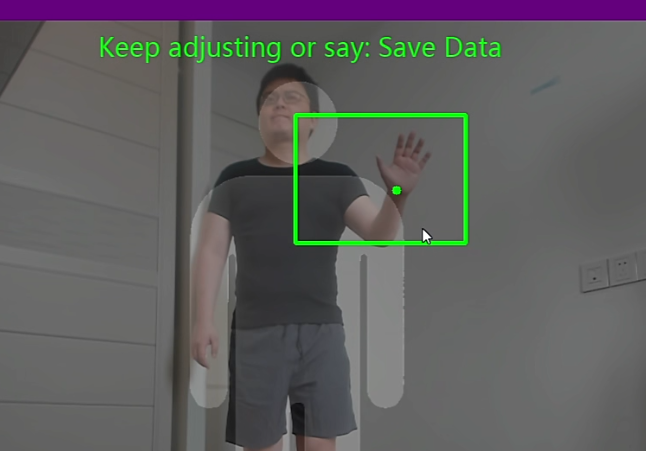
In the popup you can toggle On/Off and Right hand/Left hand, pick the execution mode (body-motion outputs offer Execute Once and Hold only), then click OK to finish.
Set Virtual Screen in Air
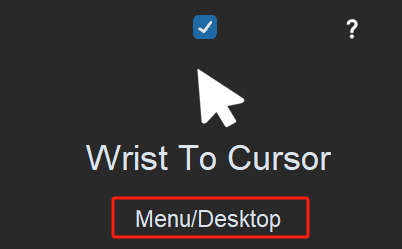
Click the Set virtual screen in air button in the popup to enter the capture view:
-
You will see a draggable, resizable green box with a hand glyph inside it, and the prompt Adjust the area that best fits your hand.
-
At the bottom is a positioning-mode switch with two states: "The aerial virtual screen stays in a fixed position." — the screen lives exactly where you drew the box; or "The box only sets the size. Each activation creates the aerial virtual screen in real time, centered on your wrist." — handy if you don't want to walk back to the same spot every time.
-
While a game is running and Wrist To Cursor is active, the working-area box is drawn live on screen in a cyan glass style (distinct from the green touch zones) so you always know your hand's working area.
Application Scenarios
Because Wrist To Cursor is a point-to-point projection, and many games deliberately block teleporting the mouse to an exact point during camera rotation or aiming (anti-cheat), this mapping mode is mainly used for controlling game menus, desktops, or 2D games.
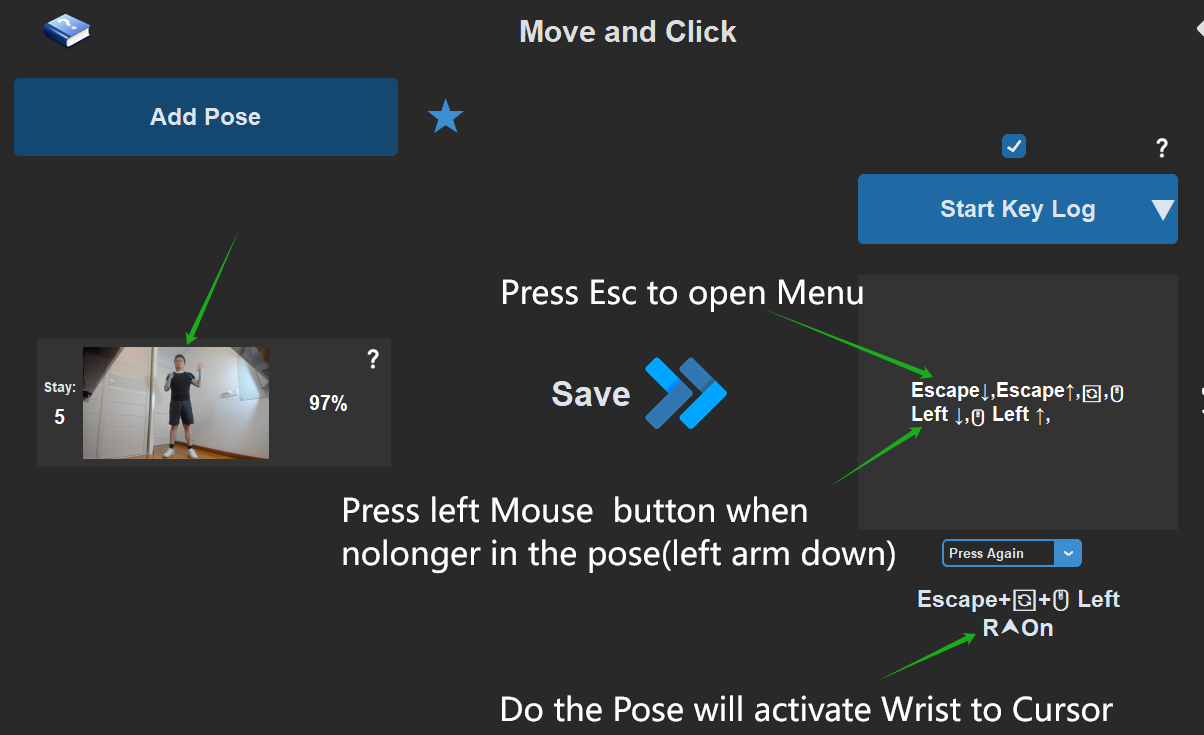
In the default full-body tracking mode (tracking lines on your body) hand gestures are not recognized, so you can design your own ways to left/right click after enabling Wrist To Cursor — for example with voice commands or left-hand poses.
Note: if you enable Wrist To Cursor with Execute Once, make sure to set up a corresponding "turn it off" Link (triggered by another pose, voice command, or HitBox). Or simply use Hold to toggle it with one pose or HitBox, and adjust the similarity range so the pointer-controlling hand can move freely while it stays active.
For more on similarity, see: Similarity
Multiple Monitors
When two or more displays are connected, the popup shows an extra Projection display picker that chooses which monitor the wrist projection lands on. Just point it at the monitor your game runs on — the old "main monitor only" limitation is gone.
Simple Mouse Mode
The Link provides another, more intuitive way to operate menus — Simple Mouse Mode. When enabled, it switches off full-body tracking and focuses on hand-gesture tracking. You exit it with a dedicated gesture, which returns you to full-body tracking (no need to turn Wrist To Cursor off separately).
To enable it, turn on the Simple Mouse Mode switch in the Wrist To Cursor popup; clicking the small gear next to it opens the gesture guide and settings card:
The card lists Left Click, Right Click, Hold to Exit Mouse Mode (each with its own Sensitivity) and Scroll (with Speed). Tune them, then click Save (Global) — you only need to do this once and it applies to all models.
-
⚠️ Poor room lighting or standing too far from the camera may prevent your hand from being clearly detected (the card's footer reminds you of this too).
-
Face the camera, raise the hand you want recognized, and keep the other hand behind your back.
-
Simple Mouse gestures focus on the index finger, middle finger, pinky, and thumb (exiting is a long thumb+pinky press). The more your hand faces the camera, the better the results — keep that in mind when drawing your hand's working area.
-
Simple Mouse only gets very few pixels to work with, so the better you align with the guide figure and the higher your frame rate (FPS), the better the recognition.
-
You will also need to tune the left click, right click, and exit sensitivities yourself — computers, cameras, and frame rates all differ.
My Simple Mouse Mode Design
If you download my models in Settings → Discover Models, you'll find that most of them summon Simple Mouse by keeping the left hand behind the back and raising the right hand, holding that pose for a moment.
This avoids accidental triggering, and since the left hand is hidden behind your back, the right hand is recognized immediately.
You can load my model, adjust the Link as needed, and copy it into your own model.
Other Issues
Pointer not showing on the correct screen
On a multi-monitor setup, use the Projection display picker in the popup to choose which monitor the projection lands on (see Multiple Monitors above).
Why does Wrist To Cursor track the wrist instead of my finger?
-
Finger positions jitter too much frame-to-frame; tracking the wrist makes the mouse much more stable.
-
So, when using Simple Mouse Mode, be careful not to draw the aerial virtual screen right against the top of the camera view — when your wrist reaches the top of the display your hand would already be out of frame and gestures could not be recognized.
-
Since the wrist is what's tracked, if you combine Wrist To Cursor with a HitBox in a design, remember to choose "wrist" as the HitBox tracking part.