
Lag / Stutter / Low FPS After Mocap Starts
The Link's performance mainly depends on your CPU (logical core count) and RAM.
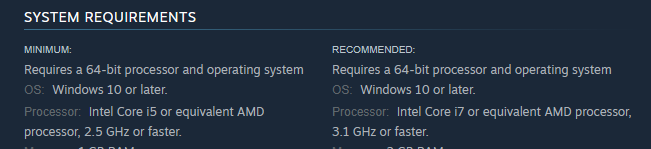
Most modern PCs should be able to run The Link at 20–30 FPS, while high-end setups can achieve 35–45 FPS. Top-tier machines can max out at 60 FPS, matching the recommended camera's max frame rate.
On first launch the app auto-picks a suitable performance mode from your logical cores and RAM (roughly: 12+ cores with 16 GB → Quality, 8+ cores with 8 GB → Standard, 4+ cores → Fast, otherwise → Lite), so manual tuning is usually unnecessary. With the right setup, even a low-end PC should not feel laggy — if it does, check the following.
Adjust the performance mode
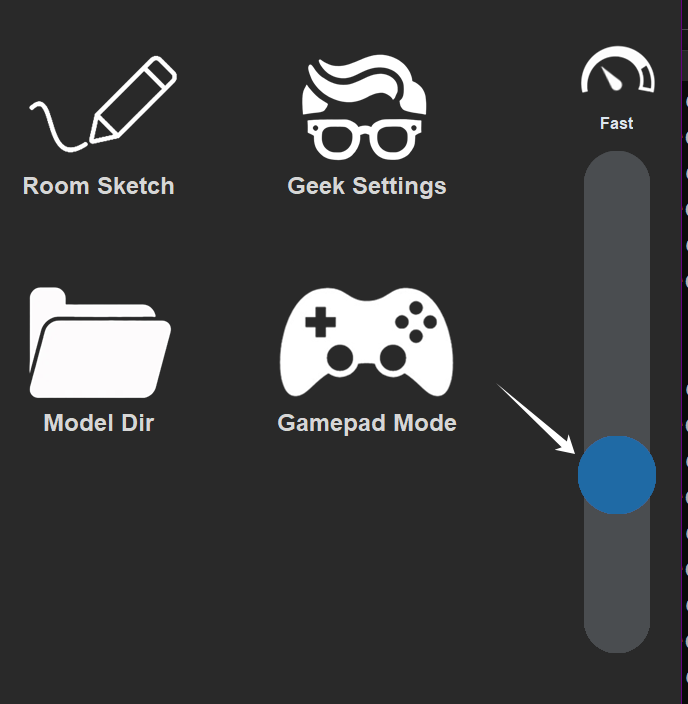
In The Link → ⚙️ Settings, use the performance bar on the right. It has 5 notches from top to bottom; changes apply live and each mode shows its own description:
- Full Body + Gestures: the top notch adds hand-gesture recognition and actually raises CPU load — do not use it while chasing lag.
- Quality (recommended, 720P)
- Standard (720P)
- Fast (480P)
- Lite (240P): in testing, even very cheap laptops run smoothly here.
Below the bar are two special-mode buttons, Single Hand and Voice Only, which replace the bar selection when active. Voice Only is the most radical lag fix — the camera stays off entirely and the app runs as a small floating window in the corner, controlled by voice commands only.
Room lighting too dim?
All of The Link's tracking depends on whether the camera can clearly see you. Make sure your play area is well-lit.
Windows Game Mode or third-party "game boost" features enabled?
Check if Windows Game Mode or any other software's "Game Mode" is enabled. These modes may mistakenly classify The Link as a non-game process and throttle its performance.
Incorrect camera settings?
If you feel latency, in 90% of cases the camera feed itself is delayed by a wrong setting — though it can also simply be the CPU struggling to run the game and The Link at the same time.
Computer camera
-
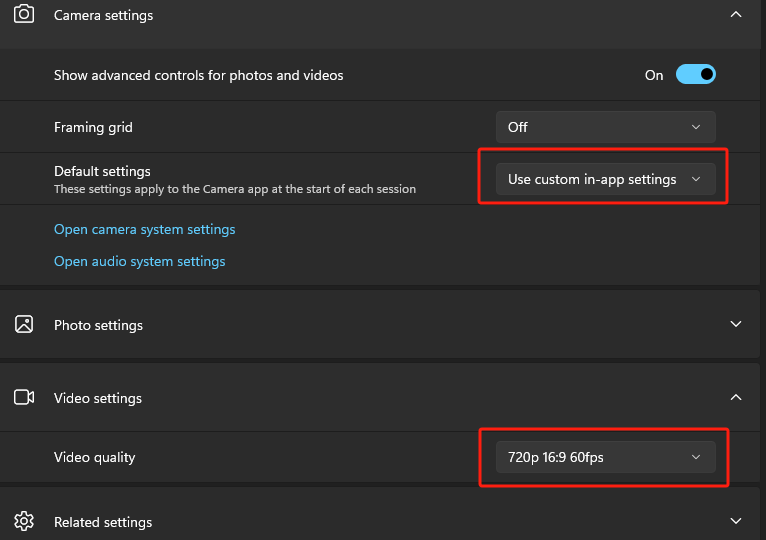
Check whether Windows or other apps have forced the webcam to a high resolution. The Link only needs 720p (1280×720). You can now pick the Camera resolution directly on the camera card in the main window (it applies to the camera immediately and is remembered); if the camera streams too high and cannot go lower, the app shows a "Camera resolution too high!" notice. You can also inspect the webcam with the Windows Camera app:
-
Avoid using third-party webcam software to apply zoom, rotation, or filters. If you need to rotate the image, use The Link's built-in rotation function instead.
Mobile phone as camera
-
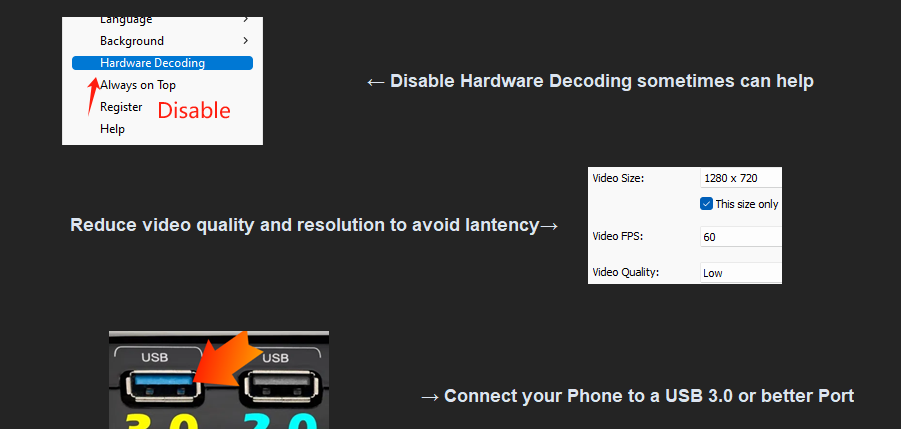
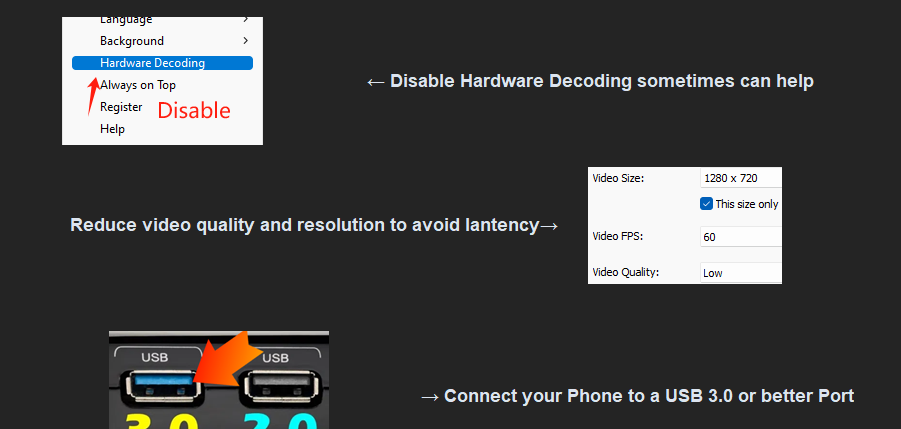
When streaming through a third-party app such as iVCam, follow the recommended setup closely — especially disabling hardware decoding, which is usually advised:
-
If 1280×720 feels too narrow for your setup, you can try 800×600. As long as your phone supports it, there should be no major issues. (With the built-in phone-pairing feature, the resolution is decided on the phone side.)
-
Adapters, cables and ports: an incompatible or falsely-labeled adapter, cable or port can also cause camera lag. Try a different cable or port.
Multiple monitors
The Link supports multiple monitors: the overlay can be bound to any monitor in Overlay Setup, and body-driven mouse output has a Projection display picker. If a particular Windows version throttles programs on extended displays and your FPS drops, try keeping The Link on the primary monitor.
Other small optimizations
- Turn off "Show figure during game": the body silhouette only exists to guide beginners into position and is now off by default. If you enabled Show figure during game in Overlay Setup, turning it off once you know your position gives a small performance gain.
- Mirror / rotation: mirror mode and camera rotation cost very little on their own, but at critically low FPS, disabling them can still buy you 1–2 frames.