
Use Your Phone as Camera & Mic (Step by Step)
Method 1: The Link Phone App (Recommended)
The Link has phone pairing built in: the phone app streams its camera to the PC over your local network with low latency, and the phone's microphone is preferred automatically — no third-party software needed.
Before You Start
- Sign in on the PC first (when signed out, the panel shows Not signed in — sign in from Motion Hub first).
- Connect the phone and the PC to the same Wi-Fi or router.
- Don't have the phone app yet? On a PC with no pairing history, Connect Phone opens the Get the App QR first. Scan it to open https://linkactivate.com/get-app. iPhone and international Android browsers go straight to their official product page; Android inside WeChat uses Tencent's micro-download page; other mainland Android browsers get one button for the phone's default app store plus a public HTTPS fallback. If the device cannot be identified, the lightweight page keeps every confirmed public channel available. The large Get Phone App icon button at the top-left of the pairing panel can reopen this download QR in every connection state.
Pairing Steps
-
Click Connect Phone at the bottom-left of the main window. With no current or saved pairing information, scan the download QR first and then choose Already have the app? Continue to Pairing; with pairing information, the desktop opens the pairing/reconnection panel directly.
-
Check the Wi-Fi banner at the top. On the phone app home screen, tap Scan to Pair at the top-left, then scan the QR code shown by the desktop (note the validity countdown under it). If scanning is inconvenient, you can also type the panel's This PC's IP into the phone app to pair and connect.
-
After pairing succeeds, find the phone-to-PC-camera card in the phone app and tap Start — the phone's picture automatically becomes this computer's camera, and the main-window preview switches to the phone feed.
-
Confirm the status: Connected · phone is the camera means success. The 📷 camera settings now show Phone camera (streaming) as the active device, and the resolution picker is replaced by a note — Resolution follows the phone's own setting.
-
No microphone setup needed: once the phone is connected its mic is preferred automatically (the panel shows 🎤 Phone mic connected · speaker mode) — you do not need to change the Windows default microphone. If you previously pinned a specific mic in the 🎤 panel, click Switch to Automatic (prefers phone mic when connected) to restore automatic mode.
Connection Status Reference
- Connected · phone is the camera: streaming normally.
- Connected · waiting for the phone to start streaming: paired — tap Start on the phone.
- Reconnecting…: reconnecting to your last paired phone. Make sure it's powered on, The Link app is open, and it's on the same network as the PC.
- Connection failing · phone is retrying: the panel explains the specific cause — an expired pairing credential (re-scanning fixes it instantly), incompatible app versions (update both the phone app and the PC), or the PC can't reach the cloud to verify the pairing (check the PC's internet connection).
- Not connected: not paired yet.
- If the phone actually stops sending camera frames, the desktop waits through the existing brief network grace period. If the stream does not recover, it clears the final phone frame, safely ends the active camera session, returns to the main window, and shows Phone Disconnected. Brief network-quality warnings while frames continue do not end the session.
Switching Phones / Syncing Models
- Click Not this phone? Scan a new QR code any time to pair a different phone.
- Once a phone is paired and connected, Sync model library syncs your saved models between the PC and the phone.
Firewall & Network
Phone and PC must be on the same LAN. If a firewall blocks the connection, allow The Link's ports: TCP (WebSocket) 9001 (handshake), 9002 (control), 9003 (microphone), and UDP 9999 (discovery).
Phone Placement
Use the rear camera in portrait orientation, at knee height with an upward tilt to capture your full body (see the placement diagram in the Beginner's Guide; the feed shows up in The Link, so you don't need to see the phone screen). If the phone is hard to fix in place, a flexible gooseneck holder works well:
Method 2: iVCam or Other Third-Party Apps (Fallback)
Many third-party apps can also turn your phone into a webcam (they connect to The Link as a virtual camera, usually with higher latency than The Link phone app). Using iVCam as the example:
-
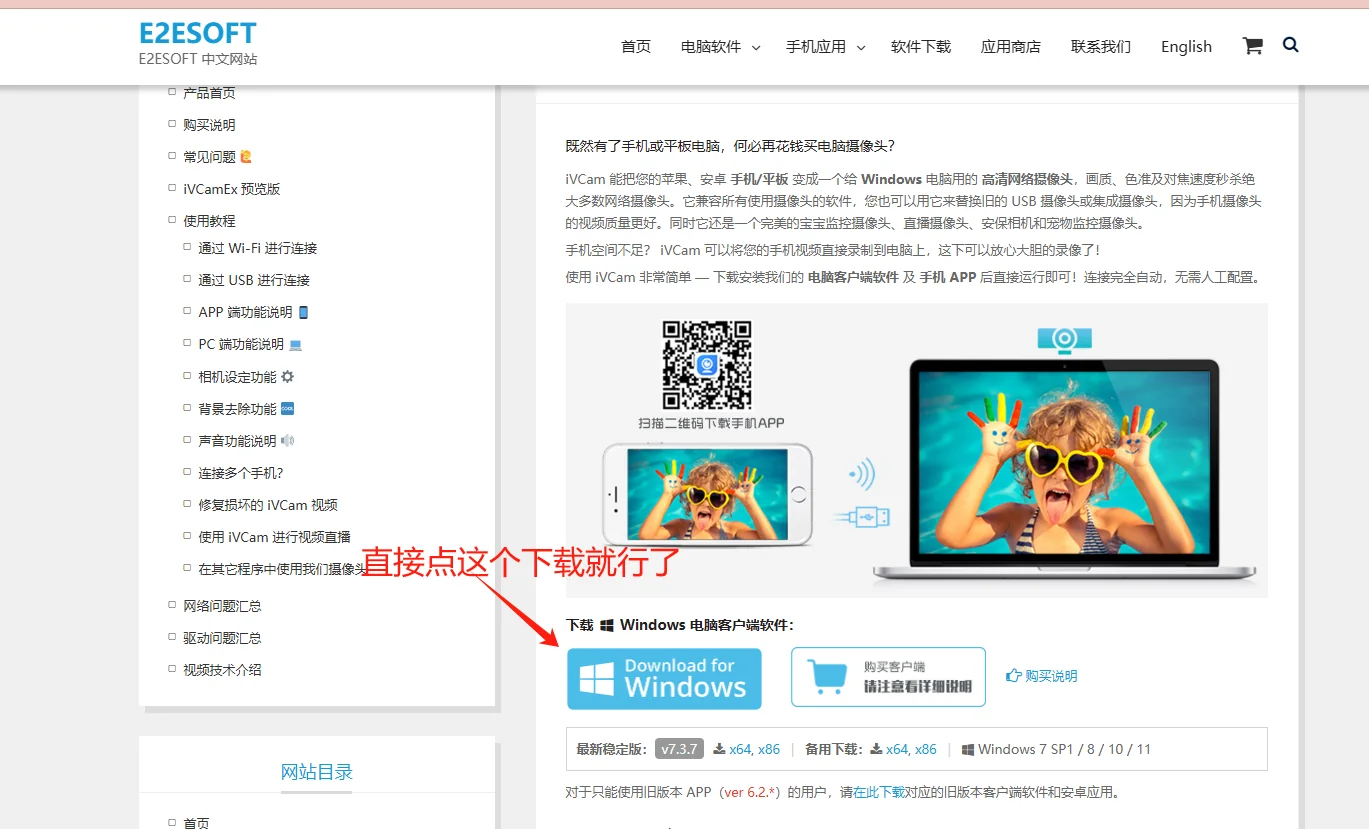
Visit https://www.e2esoft.com/ivcam/ and click Download for Windows to install the PC client.
-
Launch the PC client and scan its QR code with your phone (or get the app from the App Store / Google Play).
-
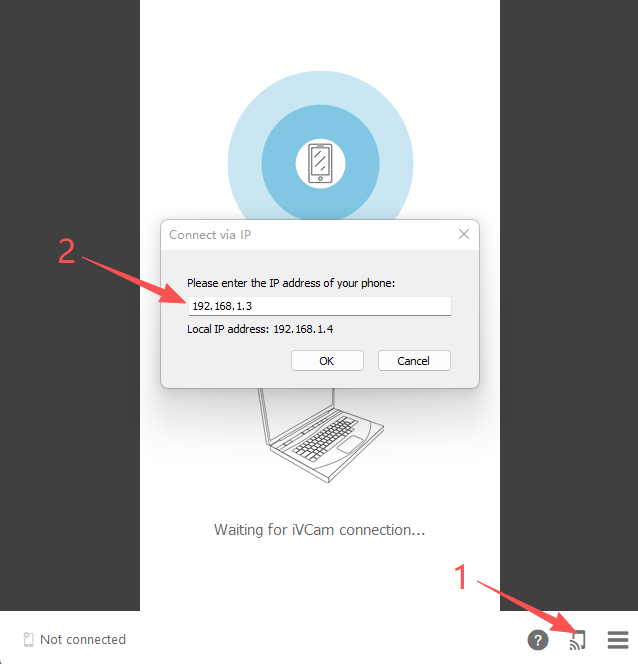
If both devices are on the same Wi-Fi, the phone app usually auto-connects. If not, click the connection icon at the bottom-right of the PC client and enter the IP manually (or check your firewall):
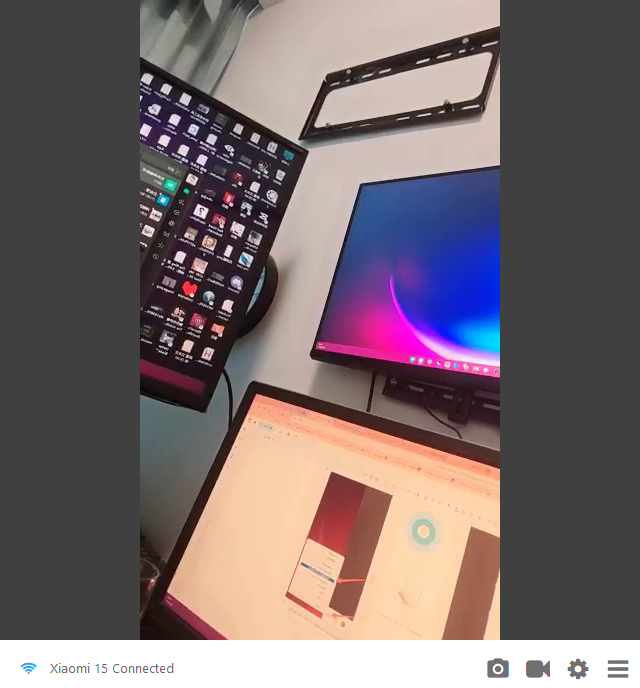
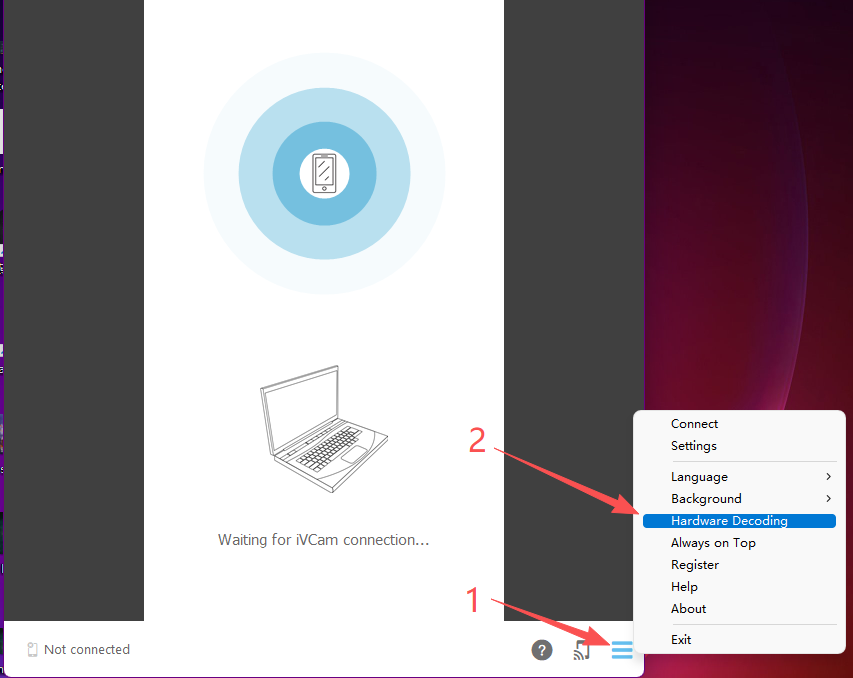
- For low latency over Wi-Fi, click the three-line icon at the bottom right and uncheck Hardware Decoding:
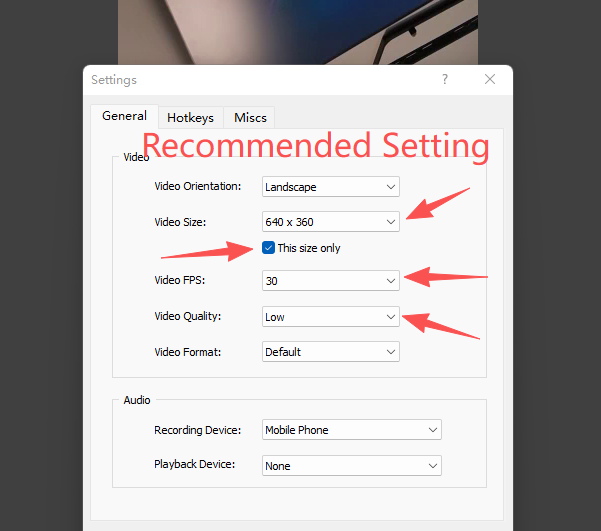
- Then open Settings and lower the incoming video quality and resolution as shown, so the Wi-Fi stream stays smooth:
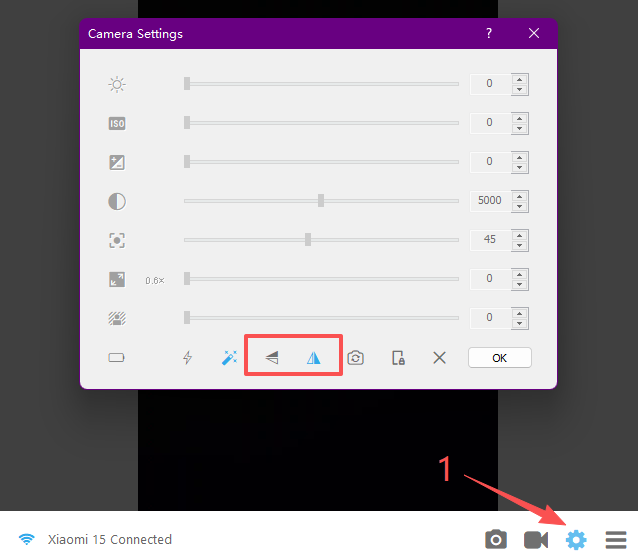
- If the picture ends up flipped or upside down after mounting, use the gear icon → camera settings to rotate or flip it:
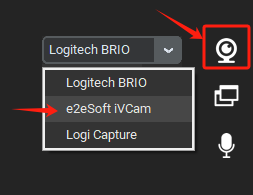
- Back in The Link: click the 📷 camera button at the bottom of the main window and select e2eSoft iVCam in the device list:
- Microphone: click the 🎤 microphone button and pick the iVCam microphone in the Choose the default microphone panel (selecting is saving — it applies immediately). You do not need to change the Windows default microphone:
Finally, mount the phone at the recommended height and start playing (use the default rear camera in most cases).
Continue with the Beginner's Guide