
New / Save / Load Model
A model is your entire current setup: every category page and all the Links inside them. The three buttons in the bottom-right of the main interface — New Model / Save Model / Load Model — manage the whole model.
New Model
Clicking New Model starts a blank model from scratch. This is destructive, so a confirmation appears first:
You are about to create a new model. All unsaved data will be cleared. Do you want to proceed?
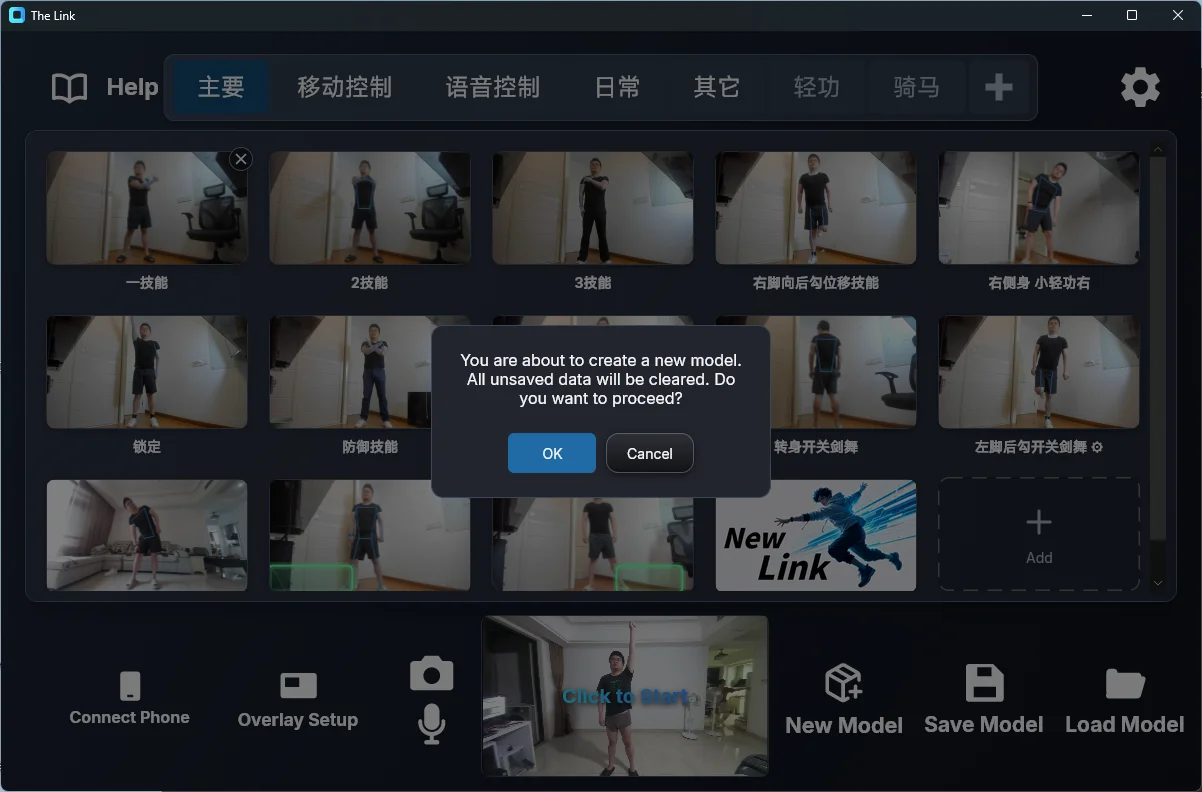
Confirming clears all unsaved pages and Links, so Save Model first if you want to keep your current work.
Save Model
Clicking Save Model opens a naming dialog with the current model's name prefilled — just press Enter or click the confirm button to save over it, or type a new name to save as a new model.
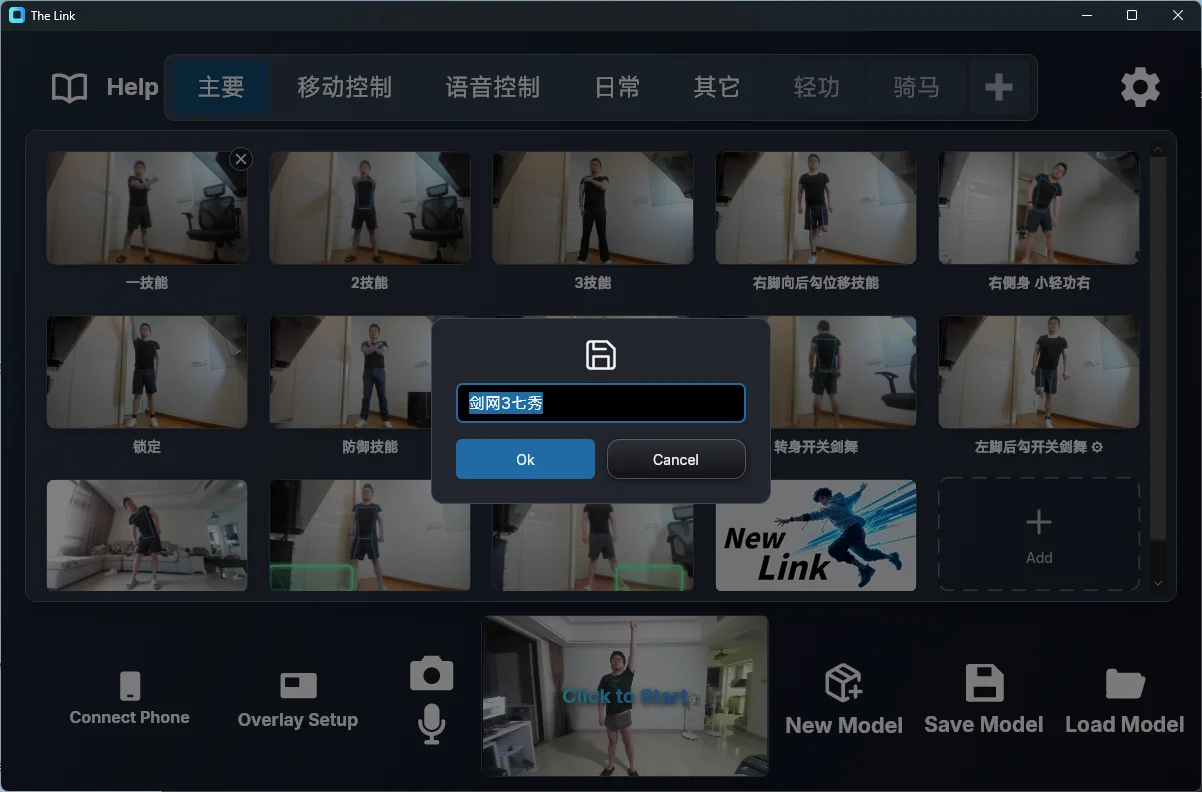
Two naming errors can appear:
- Model name too long — shorten the name.
- Invalid character in name — the name contains characters that can't be used in a file name; pick another.
Load Model
Clicking Load Model slides in the saved-models panel from the right:
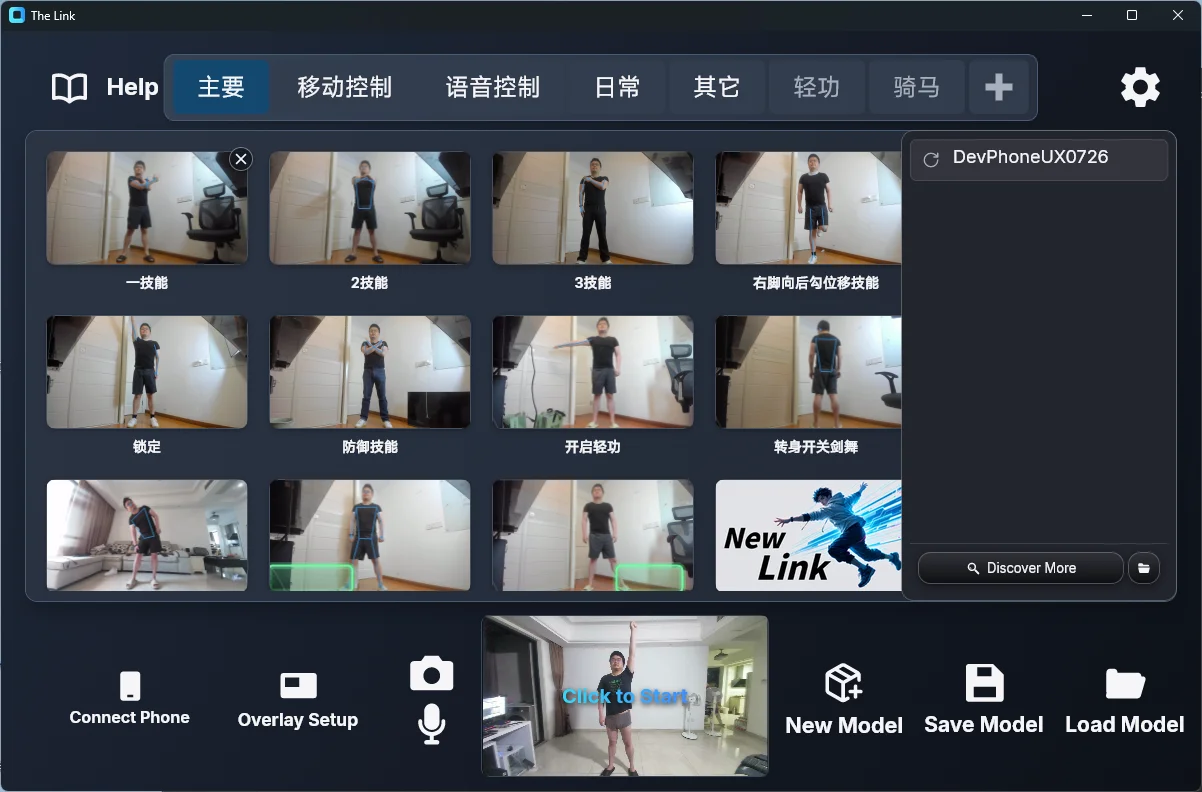
- Double-click a model to load it. A confirmation appears first: "Load 'name'? Unsaved changes will be lost."
- If your current model has unsaved changes, a guard dialog appears with two choices: Save current model (save, then load) or Discard and load (drop the changes and load anyway).
- Right-click a model row to Delete it; the menu also offers Re-record (re-records the motions of every Link in that model — use with care).
- The panel's footer has two entries: Discover More (opens the Discover Models panel to download official and community models) and Open Local Models Folder (shows the model files in File Explorer).
To grab a ready-made game model, see Discover Models in the settings; beginners should start by loading the Starter Reference Template to learn the ropes.