
Link Window Overview
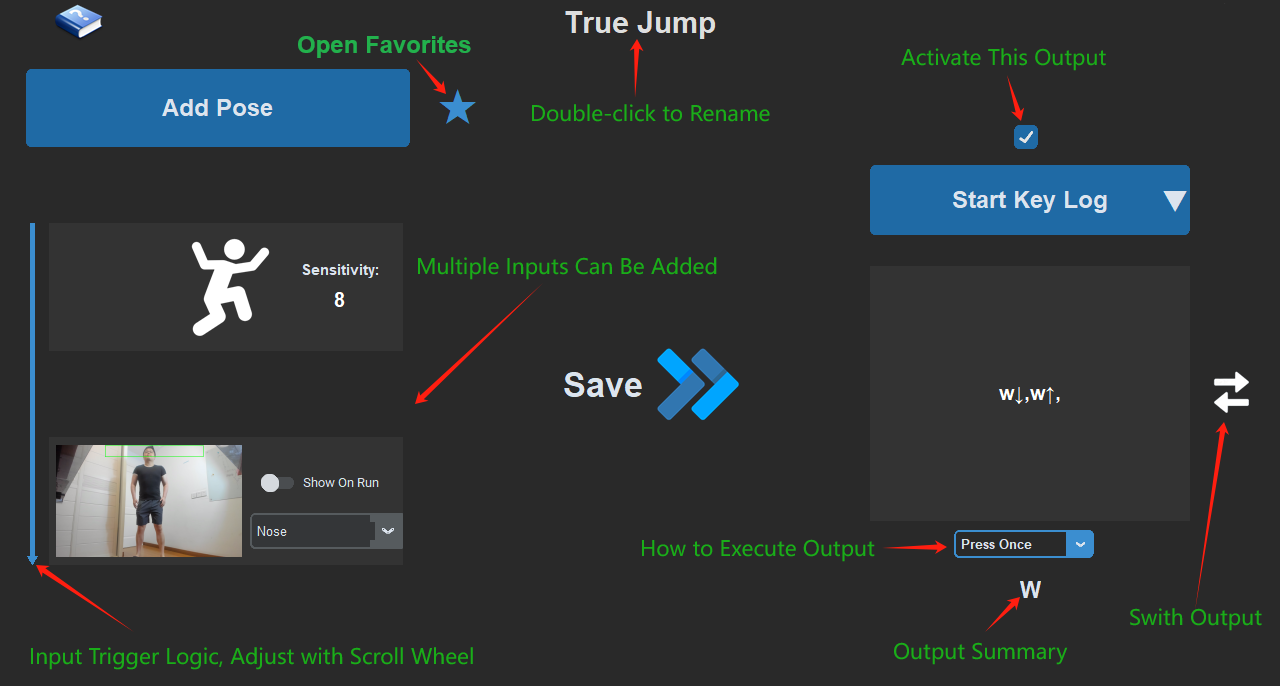
Double-click any Link card on the main interface to open the Link window. It is The Link's core editor: inputs on the left (what triggers the Link), outputs on the right (what it does when triggered), and the central Save button that writes the Link back into your model. The ★ in the top-left saves the current Link to your favorites for reuse; the ← in the top-right returns to the main interface.
Inputs
The big blue button in the top-left adds inputs. Scroll the mouse wheel over it, or click the small ▽ next to it, to open the input-type menu:
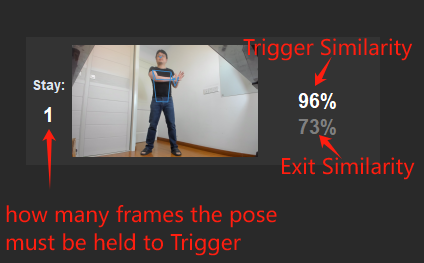
- Add Pose — saves a body pose and uses it as the trigger. Head-turn tracking also lives inside the pose dialog's tracked-part options. Details: Pose Recognition, Head Turn
- Add Hitbox — draw an area on the camera feed; a body part entering it triggers the Link. Details: Hitbox
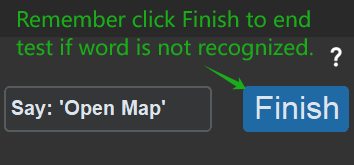
- Add Voice — type a word; saying it triggers the Link. Details: Voice Input
- Add Walk/Jump — recognizes walking in place or jumping. Details: Walk & Jump Recognition
- Add Parent Link — uses another Link's trigger state as this Link's input. Details: Link as Trigger
- Add Hand — only appears in the menu when the performance mode is Full Body + Hands or One-Hand Mode. Details: Hand Recognition
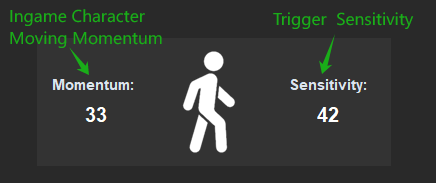
The walk card lets you tune the in-game character's moving Momentum and the walk-recognition Sensitivity directly:
Stay
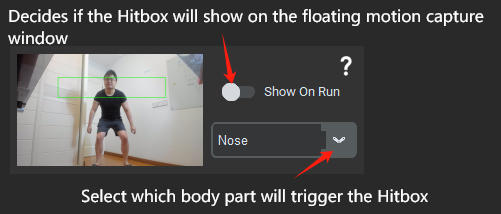
The Stay value on the left of a pose card is how long the pose must be held before it triggers, in seconds (- means no hold required; values like 0.3s or 1s are also possible).
Similarity
The percentage on the right of a pose card is the trigger similarity: the pose fires once your similarity reaches this value. Hovering it reveals a second release threshold: the pose only counts as left once similarity drops below it. The two values adjust together with the mouse wheel, and the trigger value never goes below the release value.
Multiple Inputs
Each Link accepts up to 3 inputs, of any mixed types. Once you have two or more, a logic rail and a logic chip appear on the left of the input area:
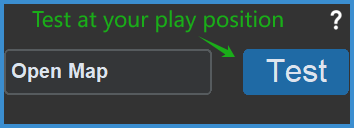
Click the chip, or scroll the wheel over the rail, to cycle through three logic modes:
In sequence
The inputs must be completed in top-to-bottom order. Pose recognition only recognizes one pose at a time, so to recognize a continuous motion, split it into 2–3 key poses and add them in order — like keyframes of the motion.
Tip: most motions have a start pose and an end pose; adding just those two is usually enough.
In sequence mode a gap timer (0.1–10.0 s) appears next to the chip: if the next step is not completed within that time, the sequence restarts from the first step.
Match all
All inputs must hold at the same time. You can split one pose into separate body parts with independently tuned similarities for more precise recognition, or combine a pose with walk, jump, voice, or hitbox inputs to build triggers that are hard to fire by accident.
In Match-all mode each input also gets a ✓/✗ expectation switch: ✓ means the input must be true, ✗ means it must be false (an exclusion condition). Voice and jump inputs are locked to ✓.
Any true
Any single input fires the Link. During intense play your poses will drift, so record several variations of a critical skill's pose to guarantee it always triggers.
If you need to mix logic modes or use more than 3 conditions, chain Links together with Link as Trigger.
Outputs
The right side defaults to the keyboard & mouse recorder: click Start Recording and everything you press is captured into the timeline. Details: Keyboard & Mouse Recording
Like the inputs, the output side has a hidden type menu: scroll the wheel over the recording button, or hover the small ▽ beside it:
- Add Mouse movement — add relative/absolute mouse motion.
- Add Delay (seconds) — insert a wait into the output sequence.
- Body-Mouse Sync — control the mouse with your body; includes desktop/menu mouse and game-camera mouse. Details: Body-Mouse, Motion Pointer
- Page & Link Control — opens the page/Link toggle popup. Details: Switch Page, Link Toggle
- Fullscreen Recording Mode — full-screen recording: press F10 to start recording and F12 to end it. Ideal for capturing long key sequences you need to perform inside the game.
- Add Other System Control Commands — add system-level control commands.
Four Behavior Modes
The dropdown below the output frame decides how the output runs:
- Execute Once — runs the whole recording once when triggered.
- Hold — presses down on trigger, releases when the pose is left.
- Trigger & Release — runs one half on trigger and the other half on release (each half editable separately).
- Spam — repeats the recording for as long as the trigger holds.
Gamepad Mode
The keyboard/controller icon in the bottom-left switches the entire model between keyboard/mouse output and gamepad output. The current mode's outputs are saved, so you can switch back at any time.
Favorites
Click ★ to store the current Link in your favorites, then apply its inputs, outputs, and cover to any other Link with one click.