
Camera & Microphone
No camera or microphone? Use Your Phone as Camera & Mic (Step by Step)
Field-of-view problems? See What to Do If the Camera Can't Capture Your Full Body
Stutter or delay after starting capture? See Delay, Lag and Low Frame Rate
Camera Won't Initialize / Black Screen
When the camera delivers no picture, The Link tells you the causes it detected. The common ones and their fixes:
- In use by another app: close whatever is holding the camera (video calls, streaming software, camera utilities).
- It's a third-party virtual camera: compatible virtual cameras (such as OBS Virtual Camera or phone-camera apps) can work, but support is best-effort and latency or compatibility varies. Prefer a physical camera or The Link's direct phone connection. Some webcam utilities (for example Elgato Camera Hub) create a virtual camera that hijacks your physical one; if you get a permanent black screen, select the physical device directly or uninstall the utility if necessary.
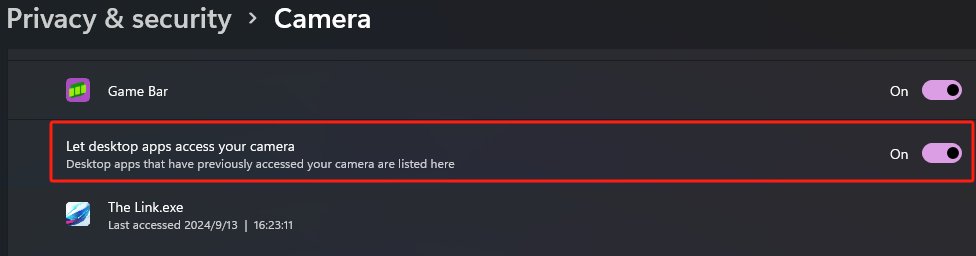
- Windows camera access is off:
Also check that the lens cap is open and that the USB cable/adapter is reliable.
For the full triage (including the resolution dialogs) see Camera-Related Issues
The Small Camera Button on the Main Window
Click the 📷 camera button at the bottom of the main window to open the camera settings:
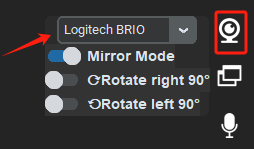
- Device picker: the first dropdown selects your camera; The Link remembers your last selected device. Prefer a physical camera or The Link's direct phone connection. Third-party virtual cameras are best-effort and may add latency.
- Rotate left 90° / Rotate right 90°: rotate the feed when the camera is mounted vertically. Note: rotating does not auto-adjust saved models — poses and hitboxes need to be re-captured afterwards, so decide your camera orientation before building an advanced model.
- Mirror: on by default — the picture behaves like a mirror/selfie view. Turning it off shows the raw camera view.
- Flip vertically: for upside-down mounted cameras.
- Disable camera preview: turns off the live preview in the main window (the preview goes black; recognition is unaffected).
- Camera resolution: applies to the camera immediately and is remembered — no restart. The Link uses at most 720p (1280×720), and the performance mode picks a suitable resolution automatically, so you rarely need to touch this.
Which Camera Should I Buy?
Players' choice
NexiGo N980P — ultra wide-angle 120°, runs 720p at 60 FPS, about $54. Lets you stand much closer to the monitor.
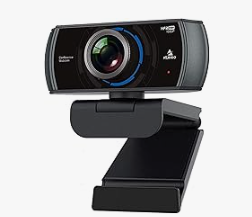
Users are quite satisfied with it, but technically any webcam with a wide-angle view that runs 720p at 60 FPS works. Note: extremely wide-angle lenses can cause visible image distortion.
Developer camera
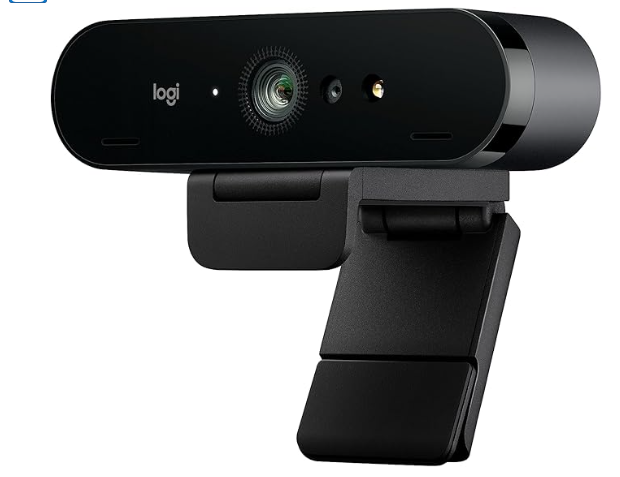
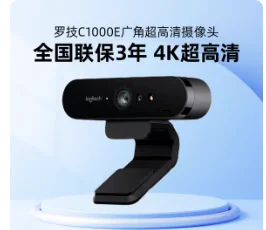
I originally developed The Link with the Logitech Brio C1000E. In theory it can 100% replicate my setup, but it's relatively expensive, has a 90° FOV (needs a larger room) and is more sensitive to lighting.
Will Moving My Camera Affect My Existing Model?
- Pose recognition: as long as the camera still faces you directly, poses keep working.
- Hitboxes: camera movement shifts every hitbox position — it will definitely affect them.
- Calibration trick: open a Link that uses a hitbox and turn on the hitbox's In game display switch — then you can re-align the camera by eye using the hitbox positions on screen:
- To be 100% certain the camera hasn't moved — and to restore its position precisely — use Settings → Room Sketch to draw a sketch of your room beforehand, then match the camera back to it later.
My Setup Is Decent, But FPS Is Still Low?
- Disable Windows Game Mode or any third-party "game boost" tools — they may mistakenly throttle The Link as a non-game.
- Use the in-app Camera resolution picker (📷 settings) to check whether other software forced your webcam into a high resolution — The Link uses at most 720p (1280×720). With a DSLR/capture card that refuses to lower its resolution, The Link shows a Camera resolution too high! warning.
- Don't use third-party webcam software to zoom or rotate the image. If you need rotation, use The Link's built-in rotation.
More details: Delay, Lag and Low Frame Rate
Microphones
Click the 🎤 microphone button at the bottom of the main window to open the Choose the default microphone panel:
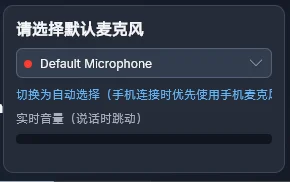
- The dropdown lists every microphone, with a live status dot next to the device.
- Selecting is saving — it applies immediately, no restart needed.
- The Live level (moves as you speak) meter below lets you verify the mic is actually picking you up.
- Click Switch to Automatic (prefers phone mic when connected) to return to automatic mode: when your phone is connected as the camera, its microphone is preferred automatically.
Hardware advice: avoid desktop microphones with aggressive noise suppression — in motion gaming you are often far from the mic, and suppressed audio is hard to recognize. For noisy rooms or streaming, use a wireless headset with a mute switch or a professional wireless mic.
For recognition problems, see Voice Recognition