
On this page
Use Settings → Discover Models on the computer, or Models & Community → Browse Models on the phone, to find a starting configuration. Models and public profiles use the same community account across the website and apps.
Find and install a model
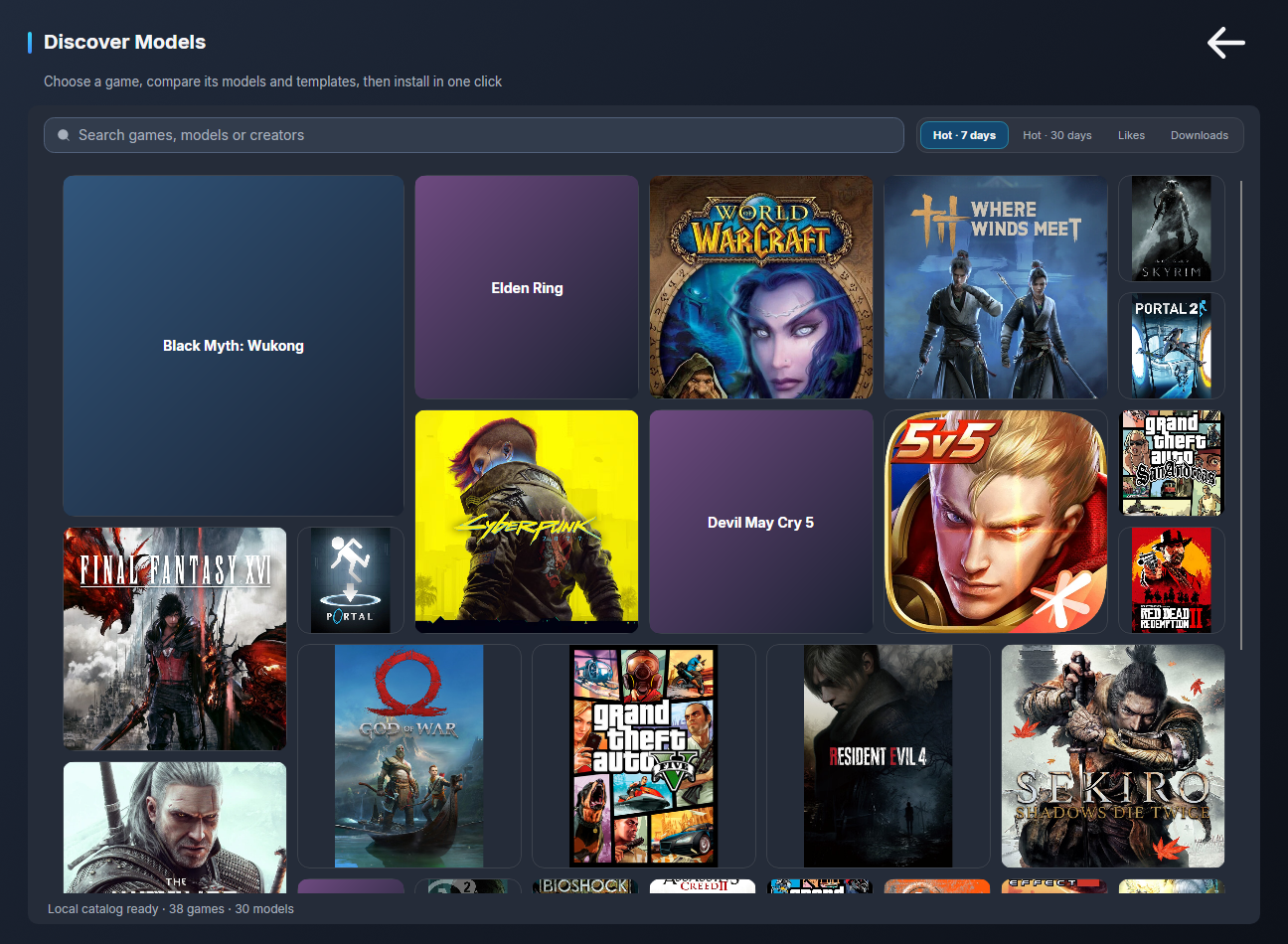
Search games, models or creators, choose a popularity filter, then open a game card.
Browse by game or search for a model/creator. The default popularity ranking is Hot · 7 days on the desktop and Hot on the phone. Use the offered filters or sorting when looking for newer or more-liked entries. Open details to read the description, author and available bindings.
Download on the computer to prepare and save the model, then follow the normal load flow and its unsaved-changes prompt. If you keep the current model, the downloaded copy remains in Load for later. A connected phone's Download to PC installs into that library; its My Models list reflects models saved on the computer. Edit, rename and delete those entries on the computer.
Games with reviewed control mappings offer generated full-body and upper-body configurations. These are assembled on your computer from the game's bindings and available shared inputs, then compatible single personal inputs from Favorites are applied. Controls with no assigned input are omitted from these generated models; read the preparation notice for gaps. An authored community model keeps its supplied inputs unless a compatible personal input can replace one.
An older output-only control template has no captured inputs and starts with disabled Links. Follow Game Control Templates before trying to play. For every motion model, check its assigned inputs and align poses and Hitboxes to your own camera and room.
Keep your own changes
Save an adapted model under your own name. Downloading another model does not mean your current editing draft was saved. Keep a named copy before loading or replacing a setup.
Names can follow the app language when a model includes translations; unprovided translations and your own names may stay in their original language. A translated name does not change the recorded keys.
Your own models stay on your devices; sharing a model uploads a copy to the community. See Model Management.
Share a model or a single Link
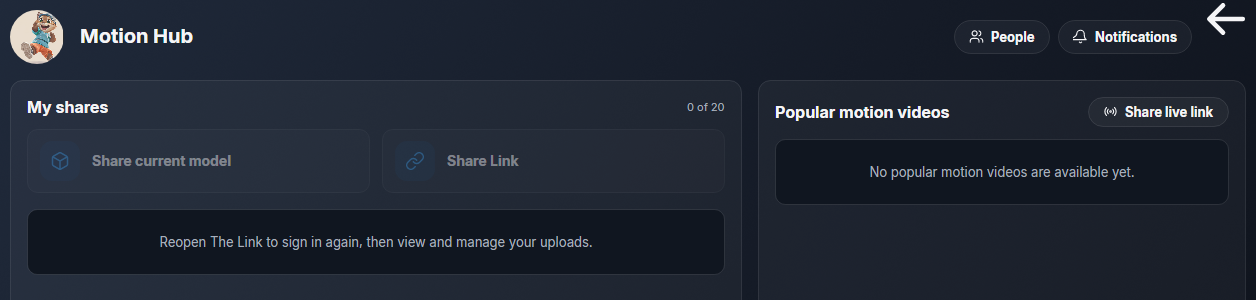
My shares contains model and Link sharing; Share live link is on the right. People and Notifications are at the top. Model and Link sharing are disabled here because the app is signed out.
On the computer, open Settings → Motion Hub and choose under My shares:
- Share Model uploads a complete .model file with a cover image.
- Share Link shows the current model's Links page by page. Pick one, then name and describe it. Only this Link's inputs, photos and outputs in the current output scheme are shared. A Link without an input, one that refers to another Link as an input, or one that turns pages or other Links on or off cannot be shared on its own. Private models and legacy models needing re-recording also show the reason they cannot be shared this way.
Both let you choose under Photos how photos are shared: Keep original photos, or a converted copy in which every photo becomes Cover Head Only, White Phantom or Transform into Stickman. Each share starts with Cover Head Only, and all four choices are available. Keep original photos preserves the images already stored in the model, including silhouettes or stick figures; it cannot restore missing camera photos. Converting changes only the shared copy; your own model keeps its photos.
Both need you to be signed in and to accept the contribution terms, and appear in the community after review. A new submission shows up in My shares right away as Pending.
Creators and follows
Open an author's profile from a model or live card. People finds accounts by nickname. Profiles can show published models, followers/following, reviewed records and approved live links.
Sign in to Follow or Unfollow. The blue MasonX badge is the service's verified creator badge; a similar nickname alone does not establish that identity.
Open Messages and replies / Notifications in the account area for follows, newly published models, live-start notices and existing feedback messages. Read state is shared across clients. These are in-app messages: a closed phone app is not promised a system push notification. An offline client can read messages after reconnecting.
Your live links
In Live links, submit your channel URL with evidence that you own it. On the computer, open it from Share live link in Motion Hub. A submission stays private until reviewed. Check its status before expecting it on your profile.
For an approved link, the available Notify followers action announces your broadcast, subject to the displayed limit. It does not by itself establish the public LIVE status. You can withdraw your link from the same manager.
Download or account problem
Check sign-in, internet and the phone's desktop connection as appropriate. If a protected model cannot open, follow the account/authorization message in the app. Keep the model file intact and try again after restoring access.
Use Inquiries & Feedback for a reproducible issue. Include the model name, action you took and exact error. For model-specific controls, also check its description and game guide.