
On this page
Pair the phone first, then open Use your phone as a trackpad on Home. The phone controls the connected computer; it does not run desktop recognition or turn a mobile game into a desktop game.
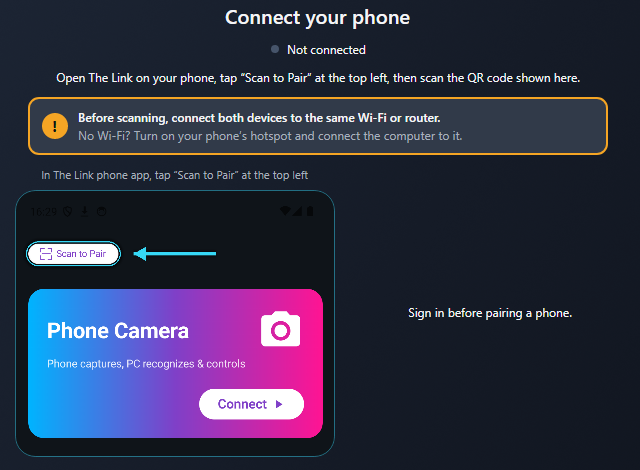
Choose Scan to Pair in The Link phone app and scan the computer's pairing QR. The computer is signed out in this example, so it asks for sign-in instead of showing a pairing QR.
Pointer, clicks and dragging
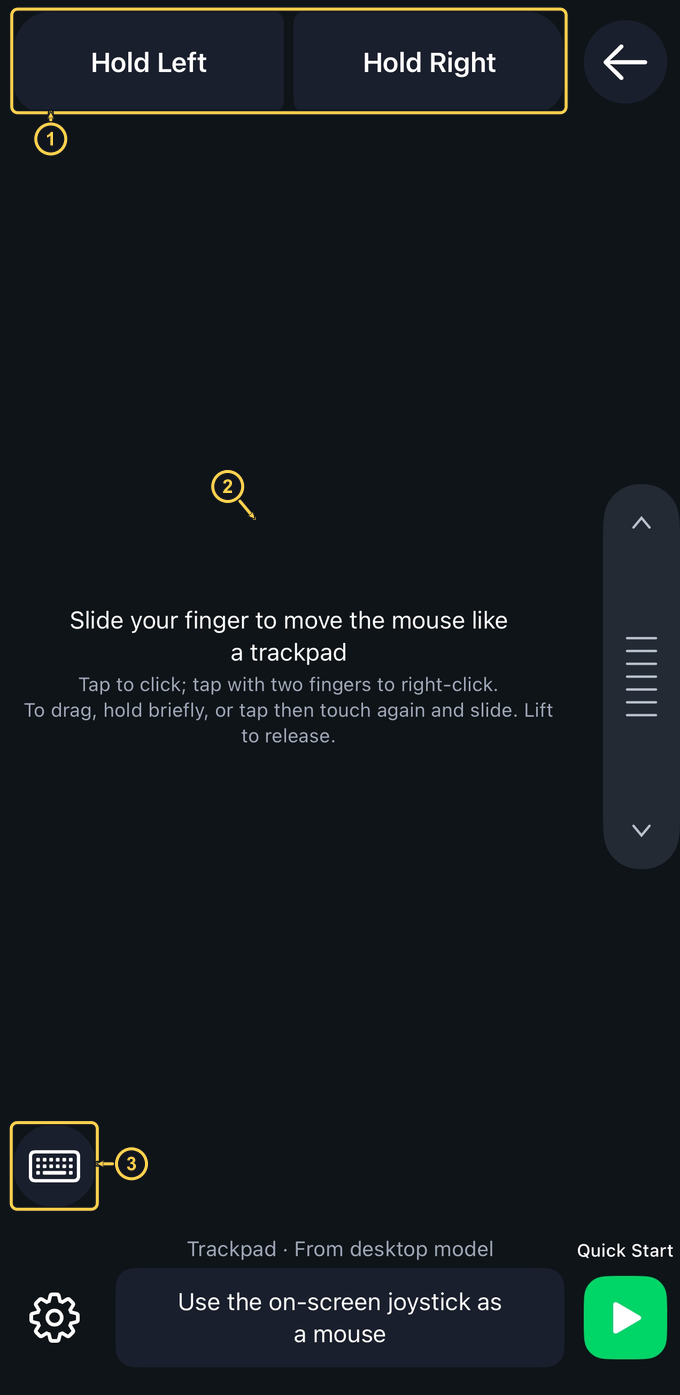
iOS trackpad: 1 Hold Left / Hold Right; 2 the center moves the pointer and the right strip scrolls; 3 the lower-left icon opens Keyboard.
| Phone action | Computer action |
|---|---|
| Slide one finger | Move the pointer |
| Tap one finger | Left click |
| Tap two fingers together | Right click |
| Tap twice | Double click |
| Hold one finger still, then slide | Drag with the left button held; lift to release |
| Tap, then touch again quickly and slide | Tap-and-drag; lift to release |
| Enable Hold Left or Hold Right, then slide | Hold that button during each finger stroke; lift to release |
Use dragging to draw a Hitbox or move a desktop control from your playing position. The ordinary trackpad remains available while recording moves, poses and Hitboxes. Read the prompts and adjust similarity on the computer.
Wheel and middle click
Drag the separate wheel up or down to scroll. Tap it for a middle click, or hold it still to hold the middle button. While holding middle, another finger can move the pointer. Lift to release.
The wheel and keyboard appear when the connected desktop supports them. If either is missing, update both apps and reconnect.
Phone keyboard
Tap Keyboard at the bottom of the trackpad. Tap a key to send it to the computer's focused window. For a shortcut, select Shift, Ctrl, Alt or Win, then tap the next key; the modifiers apply to that keystroke and release afterward. Use the keyboard's backspace key to erase text and Back to trackpad to return.
When the desktop starts a keyboard/mouse recording, this panel records outputs instead. Its extra Delete and End recording buttons belong to that recording. Phone recording explains the difference.
Joystick and motion aiming
At rest the phone is a trackpad. During recognition, a model using controller output makes it a controller joystick. For a keyboard/mouse model, Use the on-screen joystick as a mouse changes pointer movement to a mouse joystick while playing. Turning on that preference alone does not start recognition.
The loaded desktop model selects the output type. Use the phone's Settings to adjust mouse or gamepad sensitivity. On the desktop, open Link output menu → System & Device Control → Phone motion control → Turn on phone gyro, then choose Aim, Steering wheel or another mode. Configure it, click Add action, choose activation and Save the Link.
Aim offers Add pause aiming while held so you can pause and reposition your hands. Steering wheel offers Add recenter action to reset its center. Check direction and stopping before playing; see gyro setup for the full steps.
Connection paused or lost
Keep The Link visible and the phone awake. Switching to another app releases held inputs. When you return, the control screen is retained, but wait for connection status and touch again to resume; returning alone should not restart a held action.
For Connection delayed; lift and touch again or Connection lost; lift and touch again, lift your fingers, let the connection recover and touch again. Move closer to the router if Network unstable persists. If another phone owns control, use the explicit switch/replace action shown on screen.
See Pairing & Camera, Game Camera and Troubleshooting.