
On this page
A connected phone can record keyboard/mouse outputs from across the room. Start on the computer, then inspect the outputs and Save the Link.
Record from the phone
Keep the phone on its trackpad/controller screen.
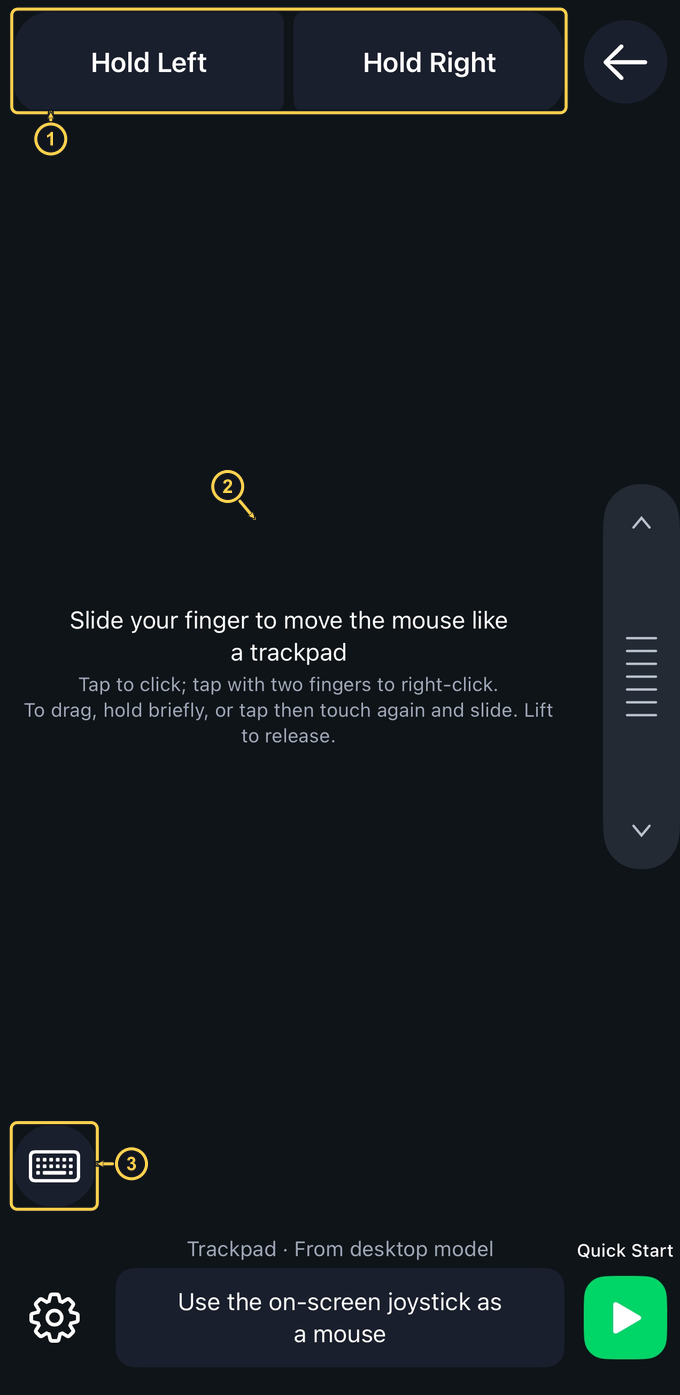
iOS screenshot: 1 Hold Left/Right; 2 move the pointer in the center and scroll with the strip on the right; 3 Keyboard opens live typing. The phone recording panel appears after recording starts on the computer.
- Open the phone's trackpad/controller screen. On the computer, open a Link and click Record Keyboard & Mouse. For fullscreen recording, start the take first.
- Tap keys, mouse buttons or wheel directions in the phone recording panel. Each tap records a complete press and release.
- The large Delete button removes the latest item; the keyboard's backspace key records a backspace.
- Tap End recording. On the computer, choose Press once, Hold or the required execution, then Save the Link. Save the model to update its named copy.
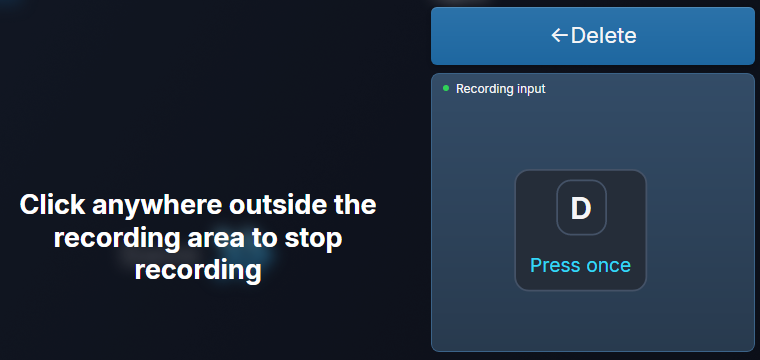
Computer view: the recording area shows the input. ←Delete removes the latest item; click outside to finish. Phone input does not require the computer pointer inside the area; the phone’s Delete and End recording operate this same take.
| Visible state | A tap does this |
|---|---|
| Ordinary Keyboard | Sends a live key to the computer's focused window |
| End recording is visible | Adds a key to the output draft |
For chords or precise timing, inspect the group on the computer or use a physical keyboard/fullscreen recording. This panel also follows supported controller keyboard/mouse mappings and both output phases; it does not record gamepad buttons.
Record a move, pose or Hitbox
The trackpad stays available for dragging and adjusting controls. For a Move, tap Record on the phone or say Start recording. Older phone versions may label the same button Capture or Remember. Follow the computer's prompts to adjust similarity and save.
If the panel is missing
Check that the phone is connected on its control screen and a computer keyboard/mouse take is active. After reconnecting or switching apps, wait for the recording state before tapping. Update both apps if needed.
If an input was not confirmed, inspect the computer outputs before retrying to avoid duplicates. See Output Recording for groups and ending actions.